
Writing prompts
A prompt in PotionUI is built from cards you can reorder, switch off and save for later, with chips that pick a word for you, variables that keep a detail consistent, and an assistant that can rewrite it. This guide follows what you want to do: write a prompt, reuse pieces, vary it, keep it, and improve it.
On this page
Write a prompt#
On Generate, the Prompt area holds a list of segment cards. Each card is one idea, such as the subject, the setting, the light or the camera, and the enabled cards are joined into the text the model receives. A new list starts with one empty card; type into it. Press Add segment under the list for another card.
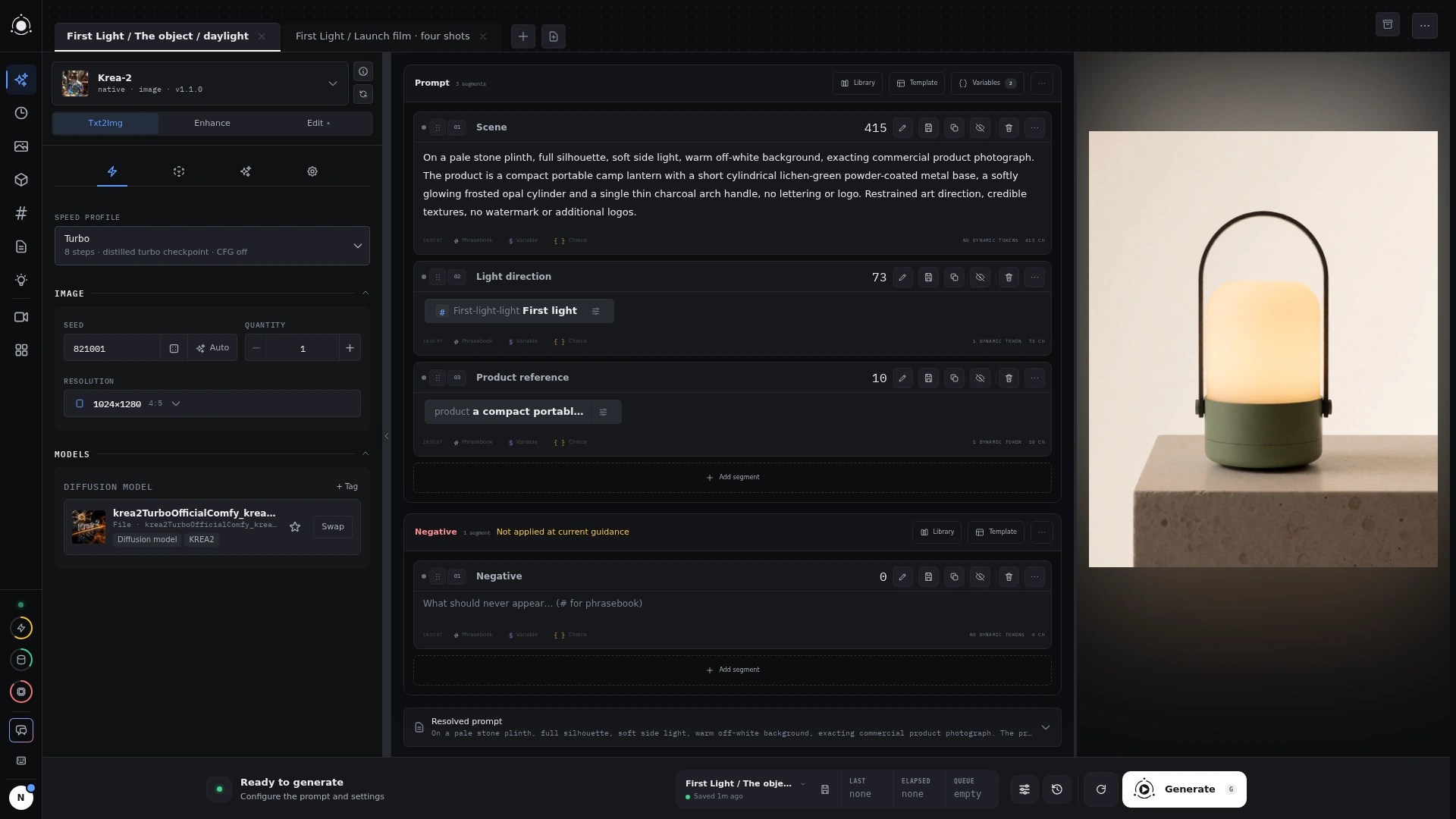 A prompt in three cards
The card’s More segment actions menu holds everything else you can do with it:
- Move up and Move down, or drag the card to a new place.
- Details… gives the card a name, a color and a description, and a prefix or suffix joined before or after your text.
- Duplicate, and switching the card off. A card that is off stays in the list but is left out of the prompt. Collapsing a card only folds it on screen.
- Save as Segment… and Replace from saved…, described in Reuse pieces.
- Insert commands for a phrasebook value, a variable, a choice group, a condition, a reference or preset syntax. Each of these has a typing shortcut too, listed below.
The Negative list below works the same way and holds what should not appear. It is saved and applied separately from the positive list. Some presets do not use a negative prompt; their Negative list says “Not used by this preset”. Every list keeps at least one card, so the last card cannot be deleted.
Under the cards, What the model receives opens the resolved text: the enabled cards joined, with the values chips stand for, and a character count. Its Copy button copies it.
What you can type in a card
| Type | What opens |
|---|---|
# | Phrasebook suggestions. Accepting one inserts a chip. See Phrasebook chips. |
$ | Your variables. Accepting one inserts ${name} as a chip. See Variables. |
<< | The condition editor. See Conditions. |
@ | The pictures, videos and audio in the preset’s media fields, so the prompt can refer to one, for example in Combine images or References to Video. |
/ | The notation the preset’s own model understands, such as speaker markers or weighting, when the preset declares one. The editor also highlights it. |
A literal $, % or # in plain text, such as $100, 100% cotton or #5, stays plain text.
Styles, batches and other prompt layouts
When a preset ships styles, a Styles button above the cards applies one, and then reads Style: … with the style’s name. Z-Image, MOSS-Image and Qwen-Image 2.1 carry the Krea-2 styles, worded for each model.
Several prompts can run as one generation. Batch prompts sit in tabs above the cards that you can rename, duplicate and delete. Each prompt is a full prompt of its own, with quantity meaning the number of results per prompt, up to 20 results in total, and each prompt lands as its own History entry. Batches run on native, remote native and cloud backends; a ComfyUI backend does not take them.
Some modes lay the prompt out differently. A preset that makes several distinct images per run gives each its own positive and negative list, and video presets use the same cards in the Video Director’s global, timed and chained sections. See Video Director and long films.
Reuse pieces: segments, templates and saved prompts#
The Prompts page in the sidebar holds four libraries. They store prompt composition only, never a preset, mode or form value; a session keeps those.
- Prompts
- Complete, ordered card lists. Save a finished product brief or a negative prompt to use again.
- Segments
- Single named cards, each in a category. Reuse a character description or a lighting direction by putting it into one card.
- Templates
- Ordered sets of slots, empty or with starter text. Start a new brief with subject, setting, lighting and camera cards already arranged.
- Categories
- Names and colors that organize saved Segments, such as Product, Lighting or Camera.
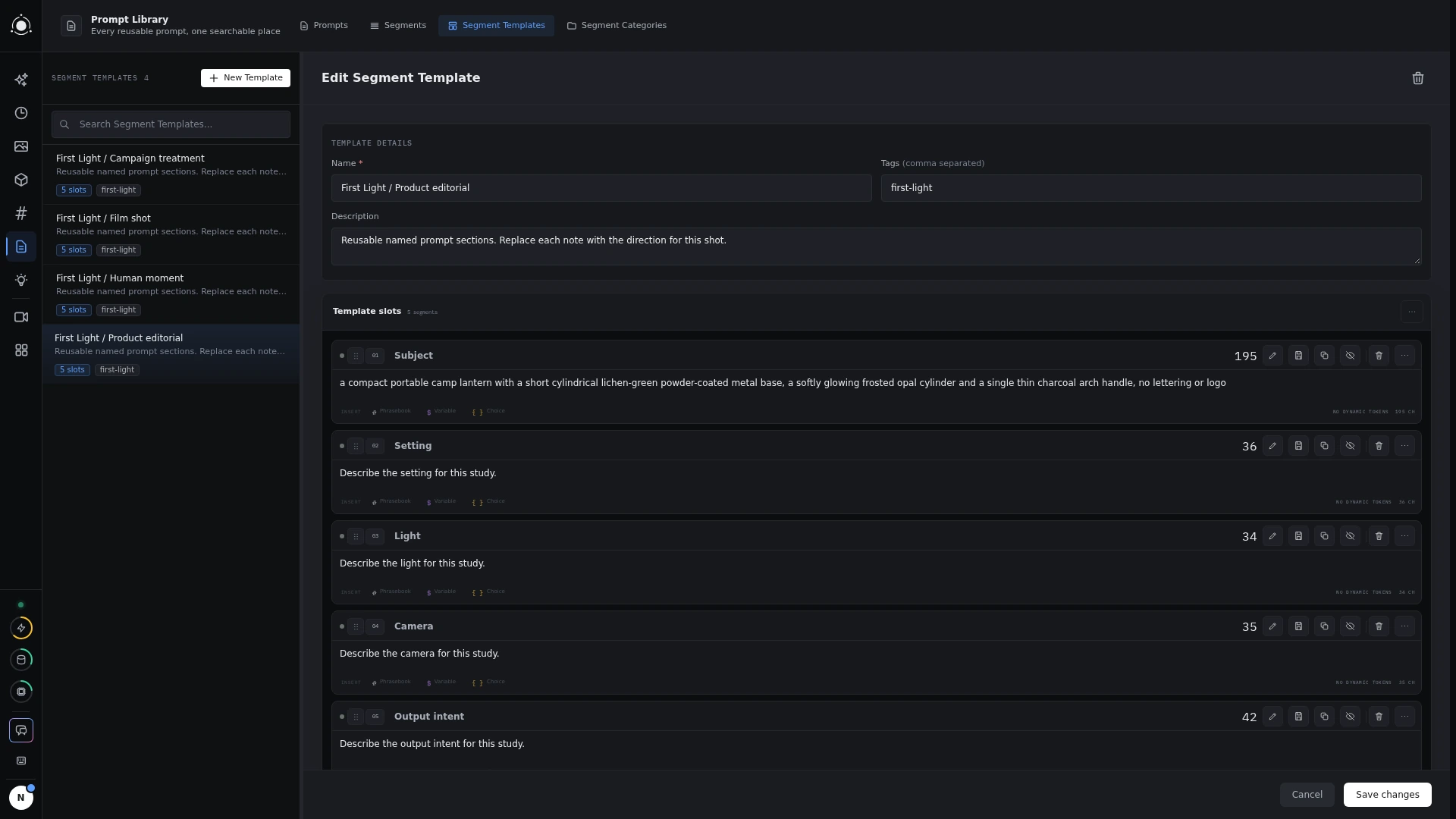 Segment Templates
Save and apply
The Library menu above each list does both directions:
- Insert: Prompts appends or replaces with a saved prompt, Segments inserts one saved segment, Templates appends or replaces with a template.
- Save: Save as Prompt keeps the list in your library, Save as Segment Template keeps its layout as a template, and Copy prompt copies the text.
On a single card, Save as Segment… opens a form filled from that card; give it a name and a category. Replace from saved… replaces exactly that card with a saved Segment, its text, chips and color. A saved Segment without a color of its own takes its category’s color.
When you apply a Prompt or a Template, choose Append, Prepend or Replace. Replacing a list that has real content asks for confirmation; an untouched empty card is dropped. Inserted cards are independent copies: editing them does not change the saved item, and editing the saved item does not change them. Applying changes only the list you targeted, positive or negative, and leaves the preset, mode, form, seed and everything else alone.
Saved Prompts, Segments and Templates keep their chips, with each chip’s chosen value and shuffle setting. Names need to be unique only within your own account. A category cannot be deleted while a saved Segment still uses it.
Vary it with choices#
A choice group picks one of several alternatives for each result, so one prompt explores several directions. Insert one from the card’s menu (Insert a choice group); the editor shows it as a chip. Behind the chip is a short syntax, which also works when you paste a prompt from elsewhere:
a {red|blue|green} glass bottle
{0.7::warm light|0.3::cool light}
{2$$ and $$silver|copper|brass} fittings
The first line picks one colour at random. The second gives warm light a higher weight; a weight left out counts as 1. The third picks two, joined by “ and ”. Each result in a run rolls its own choices from the run’s seed, so the same seed gives the same prompts and the same images again.
Keep a detail consistent with variables#
Variables are named values that belong to a Generate tab. Put a product description in a variable, insert it wherever you need it, and change it in one place. In the text a variable appears as ${name}; type $ in a card to pick one. A name that has no variable becomes empty text, so check spelling if a detail goes missing.
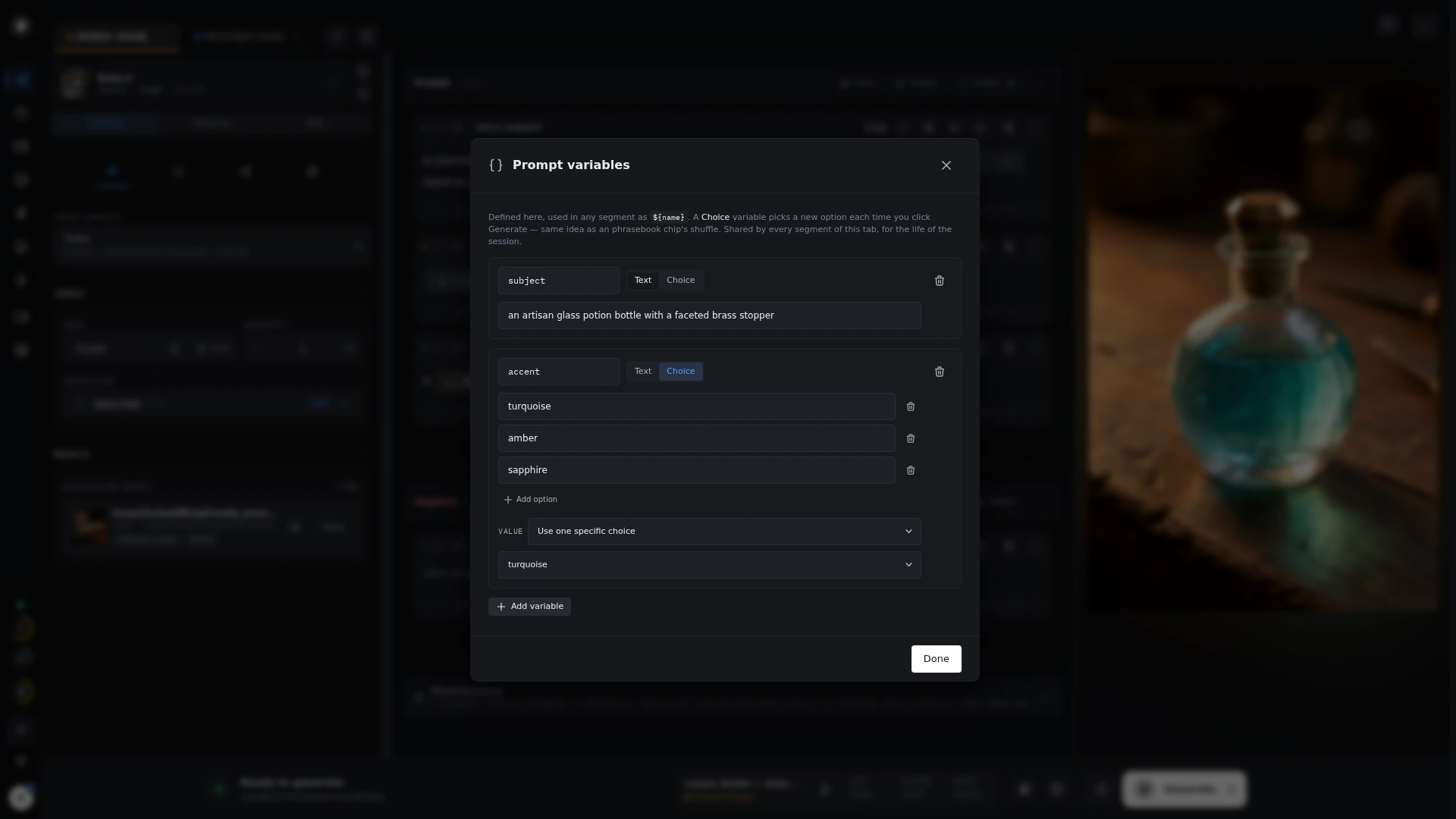 Prompt variables
The Variables button above the cards shows how many you have and opens the Prompt variables window. It lists every variable on the left, with a tick on each one the prompt uses, and edits the selected one on the right. Add variable creates one; a tab can have any number. Each variable has a type:
- Text
- A fixed piece of text.
- Choice
- A list of options. Shuffle picks a new option each time you press Generate, Pin keeps the one you chose, and Per image picks for every result in the run. An option can carry a When condition that makes it eligible only when another choice variable landed on certain values.
- Number
- A value between a minimum and a maximum in steps, with the same three modes. The steps may make at most 200 values. A number can also be used outside conditions, for example as a weight:
(red dress:${weight}).
A choice variable used in several places can roll each use on its own (Independent) or share one roll (Linked); each use’s chip shows which it is. Roll preview rolls the variables once and shows the value each one landed on. Copy copies the variables as JSON and Paste… adds variables from JSON, for example to move them to another tab. Saved Prompts can carry their variables, and Use in Generate on the Prompts page brings them along.
Pick text with conditions#
A condition chooses a piece of text for each result from the value of a variable, with if, else if and otherwise branches. Type << in a card, or use Insert a condition…, to open the condition editor. It shows a preview per result and warns about unfinished branches. Conditions read Choice and Number variables.
portrait of a woman, <<if $age > 65>>grey hair, deep wrinkles<<else if $age < 25>>youthful, soft skin<<else>>auburn hair<<end>>, soft window light
- A number is compared with
= != < <= > >=or a range such asin 18..30. A choice or text is compared with= "x",in "a", "b",contains "x",is emptyand their negations. - Spaces around every operator are required, and keywords are lowercase. One branch joins its tests with
andor withor, never both. - The first true branch wins,
<<else>>is optional, and conditions do not nest. A variable that is not defined makes every test false, so the otherwise text is used. - When the chosen text is empty, the spaces and one neighbouring comma around it are removed.
A mistake in a condition never fails the generation: a broken tag is removed, the text around it is kept, and a “Check your prompt” warning appears.
Pick words with phrasebook chips#
The phrasebook is your vocabulary: lighting setups, locations, camera angles, palettes, anything you use often. Type # in a card to search it. Accepting a suggestion inserts a chip, a self-contained token that stands for a value from one category.
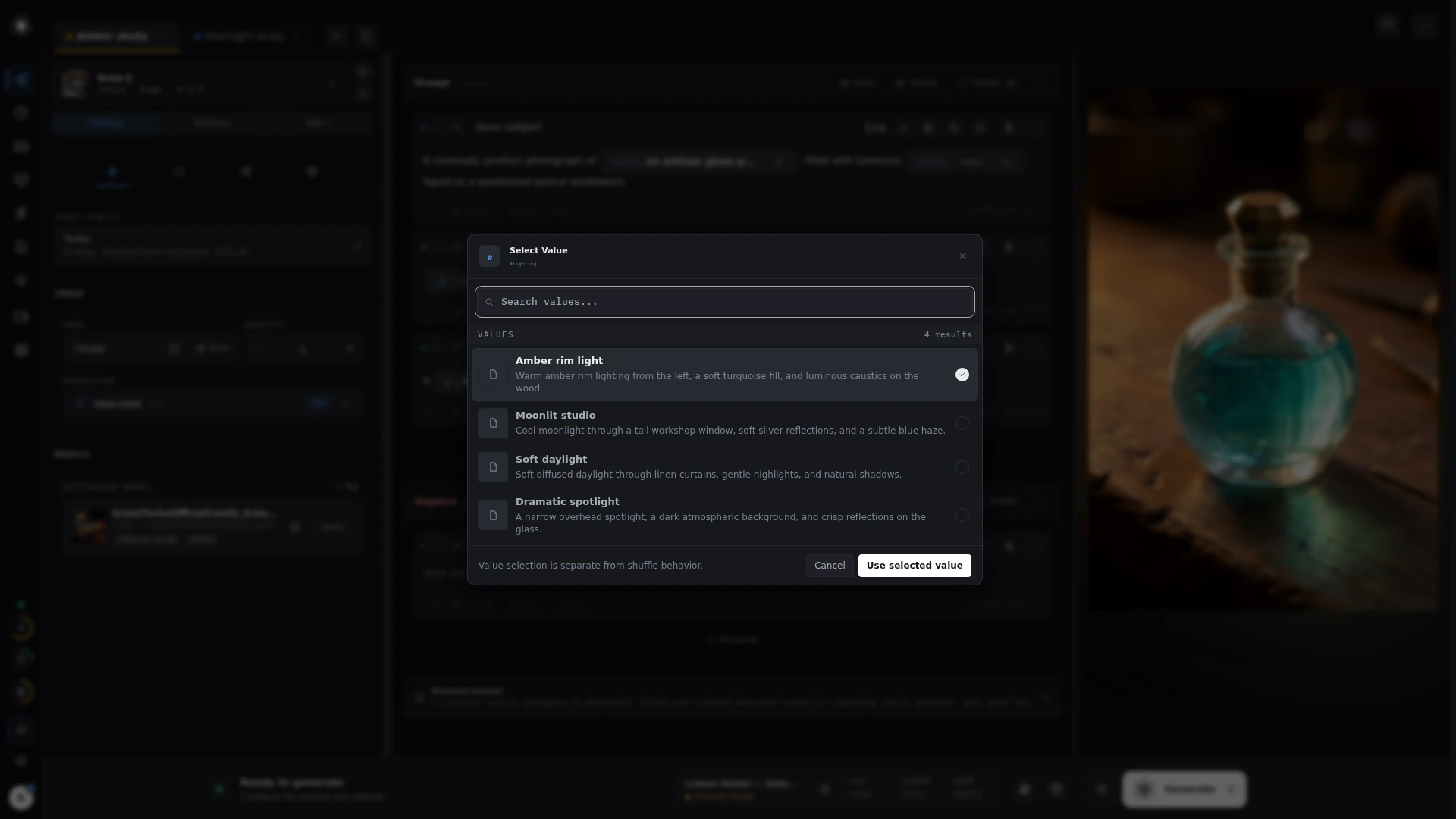 Choosing a chip’s value
Pick a specific value for the chip, or set it to shuffle, and PotionUI picks a fresh value from that category on every generation: a quick way to try a different camera angle or style each run. Shuffle now rolls a new value straight away. The generation details record the resolved prompt, so you can always see which wording a result used.
Build your phrasebook#
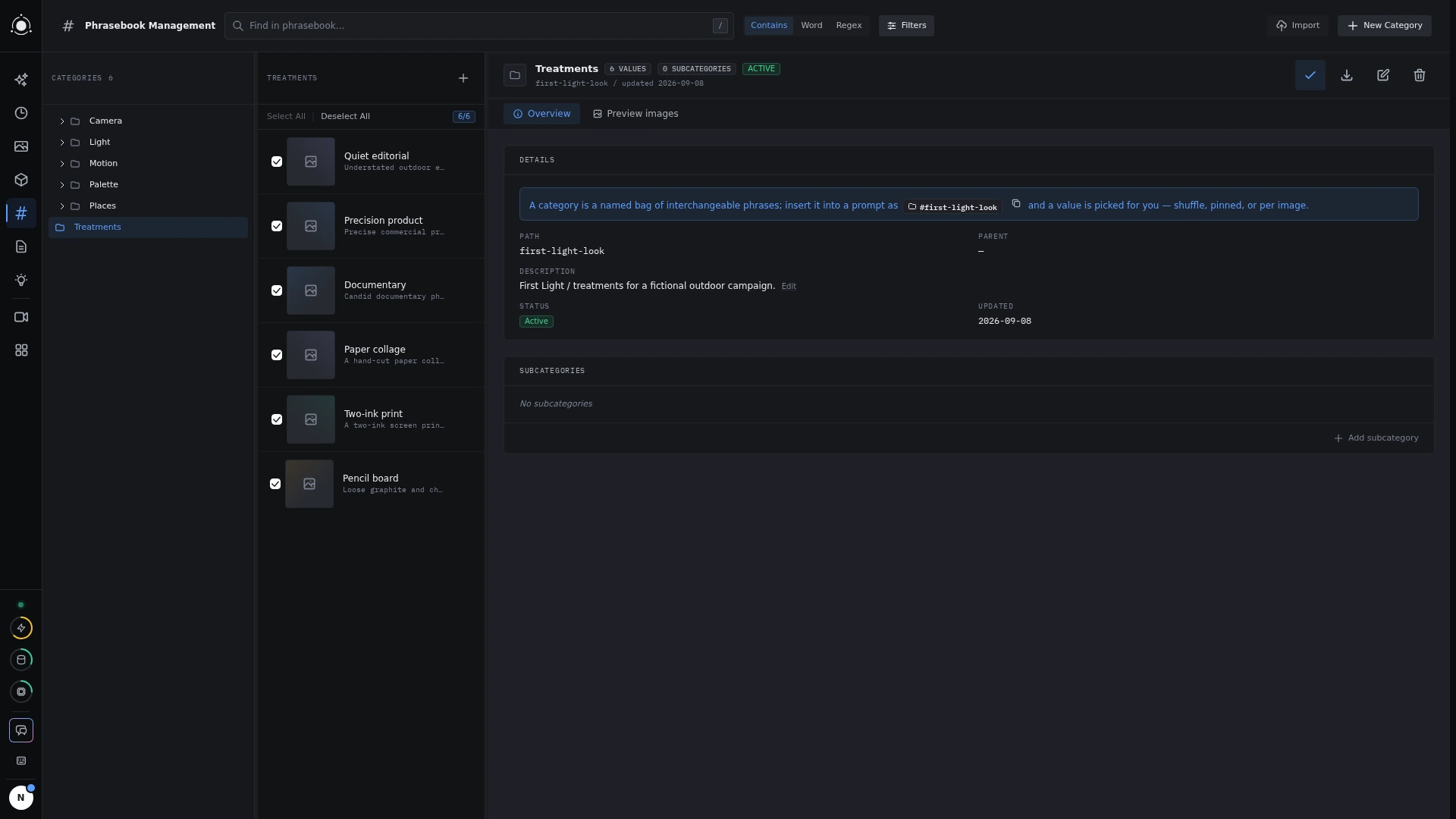 The First Light phrasebook
Open Phrasebook in the sidebar. A tree of categories sits on the left and the editor on the right.
- Categories can nest, so a large collection stays navigable, for example a lighting category under a style category. Each has a name and an optional description.
- Values live in a category. Each has a Label, the short name you see in suggestions, and a Value, the text inserted into the prompt, which can be a short tag or several lines. A “Soft daylight” label can stand for a longer, model-friendly lighting description. Both are required. A Sort Order sets the position among its neighbours.
- Mark entries active or inactive, and use Show (All, Active, Inactive) to focus the tree. Find in phrasebook searches labels and values, with Contains, Word and Regex matching and a Case-sensitive option.
- An AI assist button next to the Value field helps write or refine the text, when a language model is set up.
- A phrasebook can be imported from a YAML file, into a category or at the top level.
Keep values small and composable, individual styles, angles and quality tags, so you can mix them in prompts.
Preview images
To check that a value gives the look you want, generate a preview for it from the category panel. Select values in the Values pane (Select all, or Select missing for the ones without a preview), then choose a Preset, a saved Session for it and a Mode. The session supplies the model, steps, CFG and size, so save one on Generate first. Write a Prompt template in which << value >> stands for each value’s text: “A photo of << value >>” becomes “A photo of sunset”. Under Advanced you can set a negative prompt and a fixed seed. Press Generate … previews; one generation runs per selected value. A result can be attached to its value as the preview image, which then shows next to the value when you edit it.
The prompt language#
You never have to type this; the chips write it for you. It is useful when you paste a prompt from elsewhere, because a prompt from Civitai or A1111 turns into chips, and a PotionUI prompt pastes back out into those tools.
| Form | Meaning |
|---|---|
{a|b|c} | Pick one at random. |
{0.5::a|0.3::b|c} | Weighted pick; a weight left out counts as 1. |
{2$$a|b|c} | Pick two, without repeats. |
{2$$ and $$a|b|c} | Pick two, joined by “ and ”. |
{1-2$$ and $$a|b|c} | Pick one or two. |
${name} | Put in a variable. |
<<if $x = "a">>…<<else>>…<<end>> | Pick text by a variable. |
__wildcard__files are not supported; phrasebook chips replace them. A stray__name__stays as plain text.- A prompt that cannot be read, such as one with an unbalanced brace, is used exactly as typed, with a “Check your prompt” warning.
- On a ComfyUI preset, one roll is shared by every result in the run:
{red|blue} hairat a quantity of 4 gives four results with the same colour. This is expected.
Save and find prompts#
The Prompts page lists your saved prompts under All prompts, Favorites, Unsorted and your collections. Search uses the resolved text of the enabled cards, chip values included. Open a prompt to see its composition, its Usage hint (None, Positive or Negative), the generations that used it and its collections, and press Use in Generate to put it into the current tab.
Prompts can also be imported, from a file or from a provider such as a model marketplace. An imported prompt may carry the model, source, tags, size, sampler, steps and CFG it was shared with; that is for browsing and search only and never changes your settings. When an imported item has negative text too, it becomes a second, separate prompt marked for negative use. Duplicates are detected by comparing the prompt text.
Open the Library menu
Above the list you want to keep, positive or negative, open Library.
Save as Prompt
Choose Save as Prompt, give it a name if you like, and save. Without a name, the library shows the start of the text.
Find it again
Open Prompts in the sidebar, or Library → Prompts above any list on Generate.
Log in with POST /api/auth/login and send the token as a bearer token, as in The Generate workspace. A prompt is a list of one or more segments; usage_hint is positive or negative.
curl -X POST http://localhost:26730/api/prompts \
  -H "Authorization: Bearer $TOKEN" \
  -H "Content-Type: application/json" \
  -d '{
    "name": "Elixir bottle",
    "usage_hint": "positive",
    "segments": [
      { "name": "Subject", "content": "a glass potion bottle with a paper label that reads ELIXIR" },
      { "name": "Light", "content": "warm window light, soft shadows" }
    ],
    "tags": ["product"]
  }'
To find prompts, GET /api/prompts takes q for text search, tags, favorites_only, collection_id, limit and offset. GET /api/prompts/{prompt_id} returns one prompt.
curl "http://localhost:26730/api/prompts?q=elixir" \
  -H "Authorization: Bearer $TOKEN"
Ask your MCP client, for example, “Save this prompt to my library as Elixir bottle.” MCP and Claude Desktop covers the connection.
add_promptsaves a prompt fromsegments, with an optionalname,usage_hint,tagsandvariables. When you give it the text, it saves it word for word. It saves something, so your MCP client asks you to approve the call.list_promptsandget_promptfind and read saved prompts;edit_promptanddelete_promptchange them.- Saved segments, templates and categories have their own tools, such as
get_saved_segments,create_saved_segmentandget_segment_templates, and so does the phrasebook:list_phrasebook_categories,get_phrasebook_valuesandcreate_phrasebook_values.
Let PotionAI improve it#
When an administrator has set up a language model, AI Chat opens PotionAI beside Generate. It reads the open tab and helps with prompts:
- Ask it to brainstorm, or to expand a rough idea. Ask it to enhance your current prompt and it rewrites it for the chosen model, drawing on the model’s information and community prompts. Thumbs up and thumbs down on a result teach it the style you prefer.
- It proposes a rewrite for each card, and Apply puts the proposed text into your prompt, one card at a time.
- With tools on, it can also create and change the tab’s variables, write a condition for you, and add or remove phrasebook values. Every change waits for your approval.
Over MCP, the same rewrite is the enhance_prompt tool: pass a short brief, and a preset_id or model_id to ground it, and ask for up to three candidates. PotionAI assistant covers chat modes, tools and approvals.
Prompts workspace guide ↗Phrasebook guide ↗Prompt expansion reference ↗