
Where things are, and on a phone
A map of PotionUI: what each sidebar entry is for, where Settings and Administration live, how the app changes on a phone, and how a generation travels from your prompt to History.
On this page
The sidebar#
On a computer, a narrow icon rail runs down the left edge. Hover an icon to see its name and its keyboard shortcut. The entries, top to bottom:
| Entry | What it is for | Guide |
|---|---|---|
| Generate | Make images, video, music and 3D. Each workspace tab holds one setup: a preset, a mode, prompts, form values and results. The image and video editors and elixirs also open here, as tabs. | The Generate workspace |
| History | Everything you generated, with the exact settings that made it. Search, filter, tag, sort into collections and reuse. | History and collections |
| Library | Media you keep for reuse: uploads, references, and copies of results. | Library and Inspirations |
| Models | The models installed on the server that your account can use. | Your models and folders |
| Phrasebook | Your vocabulary of terms, offered as suggestions while you type a prompt. | Writing prompts |
| Prompts | Saved prompts, segments, templates and categories. | Writing prompts |
| Inspirations | Selected work and its creative direction, collected to browse and reuse. | Library and Inspirations |
| Resume setup | Administrators only, while the instance is not yet ready to generate. Reopens the setup guide. | Install and first run |
| Administration | Administrators only. Users, models, presets, backends and every server-wide setting. | Administration, users and plans |
Plugins can add their own pages to the rail. When the rail runs out of room, the entries that do not fit move into a More menu.
The bottom of the rail#
- Widgets that plugins add, such as a system monitor.
- AI Chat opens PotionAI, the assistant, beside the page. It needs a language model set up by an administrator. The C key opens it too. See PotionAI assistant.
- Notifications, for example when a long run finishes.
- Keyboard shortcuts lists every shortcut.
- Quick actions opens a command list.
- Account menu, the round button with your initial or avatar. It holds Settings and Auto-organize, the Sensitive content setting, links to the community, switching between accounts, and Log out.
Settings and Administration#
Settings is yours: open it from the account menu, or from the bottom bar on a phone. It is split into sections: Account, Plan & usage, Appearance (System, Light or Dark theme), Content, Notifications and API keys, where you create keys for a script or an MCP client. Some sections only appear when they apply to your account. See Settings and your account.
Administration is for the whole server and appears only for administrators. Its tabs are System Settings, Models, Presets, Recipes, Backends, Generations, Users, LLM / Assistant, Plugins, Downloads, Automations and Auto-organize. This documentation writes a place inside it as, for example, Admin → Models → Folders.
Inside Generate#
Across the top of Generate run the workspace tabs, with a plus button for a new one. Under them, a toolbar holds the preset, mode and session menus and a set of view tools:
- Field visibility
- Simple hides the fields marked as advanced; their values still apply. Advanced shows everything.
- Layout
- Two panes or Three panes.
- Float form
- Lifts the form out into a floating panel you can move.
- Float workbench
- Lifts the Workbench, the large preview of the result, into a floating window you can move and resize, so it stays in view while you work on the prompt.
- Fold form
- Folds the form to the side to give the prompt more room.
When the window is narrow, tools that do not fit fold into a menu. The run bar at the bottom holds Generate, the status of the run and the generation queue. The Generate workspace tours the page in detail.
On a phone#
On a screen narrower than 768px, PotionUI swaps the rail for a bar along the bottom of the screen with five buttons: Generate, History, Models, Settings and Chat. Chat opens PotionAI as a sheet that slides up over the page.
Generate becomes one full-screen canvas built for a thumb:
- At the top, the tab button opens the Tabs sheet, where you switch tabs, close them and open a new Generation tab or an editor. Beside it, a pill shows the preset and mode, or Select preset; tap it to open the Preset and session sheet. A chat button opens PotionAI.
- In the middle, the canvas shows the live preview and then the result. While a video samples, it loops a short low-resolution clip of the sampling so far.
- At the bottom, a row of result thumbnails with Download and tags, then the prompt field, which opens the Prompt sheet, and a Settings button that opens the form in its own sheet. The run bar with Generate sits above the bottom bar.
On a phone, Generate fills in the form defaults and picks installed models without opening the form first, and your prompt edits are kept when you close the Preset and session sheet. The floating form and floating Workbench are computer-only; the canvas plays that role on a phone.
Library, Phrasebook, Prompts, Inspirations and Administration have no button in the bottom bar. They still open on a phone at their own address, for example /library. When the browser supports it, a banner offers Install PotionUI to add the app to your home screen.
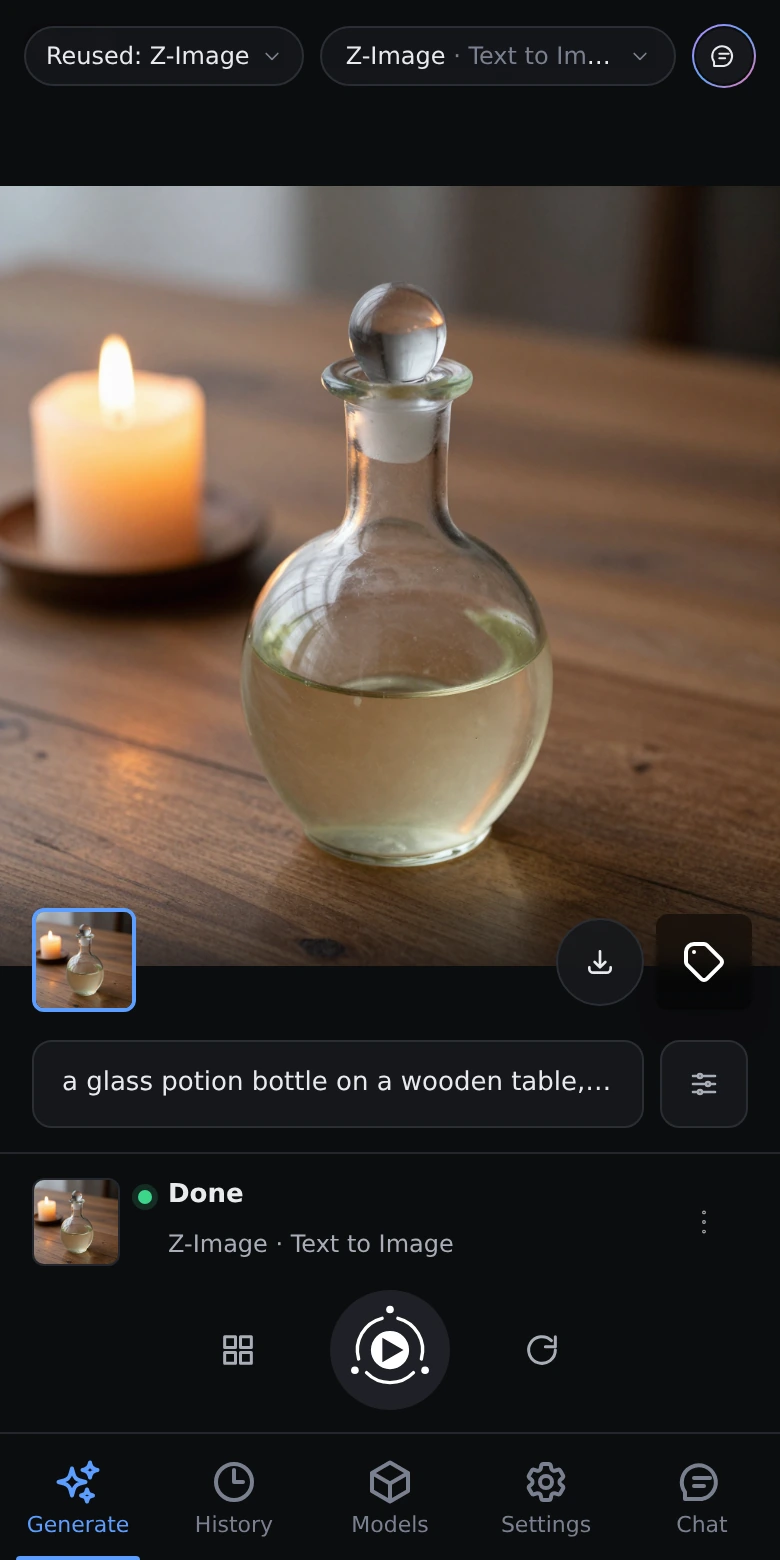 Generate on a phone
How a generation travels#
PotionUI connects the people who use it to the compute that runs their work. Follow a generation from user and group access, through native or ComfyUI execution, into the same History.
 PotionUI How a generation travelsSystem map / 01
-
Access
People get the tools they need.
UserDirect assignmentsGroup membershipsInherited assignmentsAvailable to this accountPresets · Models · Assistant configurationsAdministrators manage accounts, groups, and resource assignments.
-
Compose
Turn an idea into a generation request.
Preset + modePrompts + input mediaForm settingsGeneratePotionUI checks access and prepares the request.ServerThe preset defines the pipeline and declares its engine.
-
Route, queue & execute
Match the work to compatible compute.
Generation routerMatching engine → model availability → preset requirementsChoose the least loaded eligible backend; a tie goes to the default, then the highest priority.Native engineLocal GPU
Native pipeline inside PotionUI.
On this machineNative engineRemote worker
Native pipeline on a connected worker.
Your server or cloud GPUComfyUI engineComfyUI server
Workflow engine via the ComfyUI Backend plugin.
Local or remote serverAdditional enginesPlugin backend
Connect another engine through a plugin.
Extension pointOne PotionUI queue per backendExample · FIFO orderPotionUI holds one active slot per backend. Pending jobs stay in PotionUI until that slot is released; separate backends can run in parallel.
Local GPU
- ActiveJob 01User A
- NextJob 02User A
- WaitingJob 03User B
Remote worker
- ActiveJob 04User B
- NextJob 05User C
- WaitingJob 06User A
ComfyUI
- ActiveJob 07User C
- NextJob 08User A
- WaitingJob 09User B
Plugin backend
- ActiveJob 10User A
- NextJob 11User B
- WaitingJob 12User C
ComfyUI executes the active workflow and streams progress. PotionUI holds its slot while waiting for completion, then submits the next job. Plugin backends follow the same queue contract.
PotionUI’s FIFO (default) or Fair scheduling policy determines ordering across users for every backend. How ordering works ↓
Execute on the selected backend
One request takes one compatible route. Progress and previews return to the workspace while it runs.
Local native: execution stays in PotionUI’s process. Outputs pass directly to its output handlers.
Remote native: the worker receives the pipeline and input assets. Returned media enters PotionUI’s normal output handlers.
ComfyUI: the server executes one submitted workflow and streams progress. PotionUI waits for results with the backend slot occupied; the next job stays in PotionUI’s queue until completion.
Plugin backend: a plugin driver executes locally or through another service. PotionUI owns its queue and holds one active slot until completion. Returned outputs enter the same gallery.
-
Save
Keep the media and its generation context.
All routes converge on PotionUI’s output processing.
Media storageOutput files + thumbnailsLocal disk or configured S3 storageGeneration recordsOwner, prompt, seed, models, settingsStored in PotionUI’s database -
Keep & reuse
One gallery, every engine.
ImagesVideoAudio3DHistory Tags & collections Inspect & reuse
Generation access stays with the owner or an administrator.
Access follows the person#
Direct user assignments and assignments inherited through group membership decide which presets, models and assistant configurations an account can use. Administrators manage these grants. Assistant access supports prompt writing; a generation uses its selected preset and models.
Group membership grants access to tools. Generation records keep their own owner, and only the owner or an administrator can read or change a result.
The preset chooses the engine; the router chooses the backend#
An engine is the way a pipeline runs, such as the native engine inside PotionUI or a ComfyUI server; a backend is one configured instance of an engine. The router starts with the enabled backends that match the preset’s engine. It uses model availability and cached requirement checks to rule out backends known not to qualify, then chooses the least loaded eligible backend, with the default backend and then the highest priority breaking a tie. Requirements that have not been checked yet stay unknown and trigger a refresh in the background.
Local native backends and remote workers share the native engine. A ComfyUI preset needs a ComfyUI backend. If no backend qualifies, PotionUI reports the reasons instead of switching engines. RunPod supplies hosting for remote compute; it is not a separate engine. See Backends, remote workers and routing for setup.
The dashed Plugin backend branch marks an extension point: plugins can register more engines, their backend settings, and the pipes and presets that go with them. These join the same generation flow and return results to the same History. See the backend extension reference ↗.
PotionUI owns every backend’s queue#
Routing assigns a request to a backend; PotionUI’s scheduler decides when to send it. PotionUI keeps one active generation per backend, so a busy local GPU does not hold up a separate remote worker. The four lanes in the figure show example jobs in FIFO order: the default policy sends them in the order they arrived.
Administrators can choose Fair scheduling under Admin → Backends → Scheduling, for any engine. It takes turns between users while keeping each user’s own jobs in order, and prefers jobs for the model already loaded. By default, after three jobs in a row for that model, the longest-waiting job for a different model goes next. If no other model is waiting, same-model work continues. See the scheduling policy reference ↗.
ComfyUI runs the active workflow and reports its progress. PotionUI keeps the backend slot occupied while it waits for the results, then frees it before sending the next job, so each configured backend has at most one PotionUI job at a time. Engines that plugins register through backend.register use the same queue and the same one-slot rule, whether their driver runs locally or calls another service.
Different compute, the same History#
Local results, results imported from remote workers, and ComfyUI results all go through the same output handling. It saves the files and thumbnails, and the generation record keeps the parameters and model information. Progress and previews also come back to the workspace.
History brings those saved results together for filtering, tagging, collections, inspection and reuse. Where a generation runs changes nothing about who owns it.