
Create
Generation workspace
Keep the idea, the controls, and the result in view.
Read the workspace
- Preset & mode
- Choose the tool and the kind of generation. Switching presets resets the mode and form to match the new tool.
- Prompt editor
- Compose positive and negative directions as ordered segment cards. Some presets use multiple prompt lists or Video Director.
- Generation form
- Choose models, dimensions, seed, quantity, and any optional controls the preset exposes.
- Workbench
- Inspect previews and results. Resize the preview area and step through batch items or video outputs.
Follow a run
Generate starts the job; while it runs, the control becomes Cancel. Progress reports the current pipeline stage, such as loading models, encoding the prompt, generating, or upscaling. Intermediate previews appear when the pipeline provides them.
Jobs run on the server. Switching tabs, leaving the page, or reloading does not cancel a run. PotionUI reconnects to its state when you return. The workspace identifies a busy tab so you can jump back to it.
Inspect and compare
Open a result at full size or send it back to the Workbench. Compare two images with a movable divider to inspect differences. A run may also expose artifacts: the actual seed, applied models, or a before-and-after image from an enhancement step.
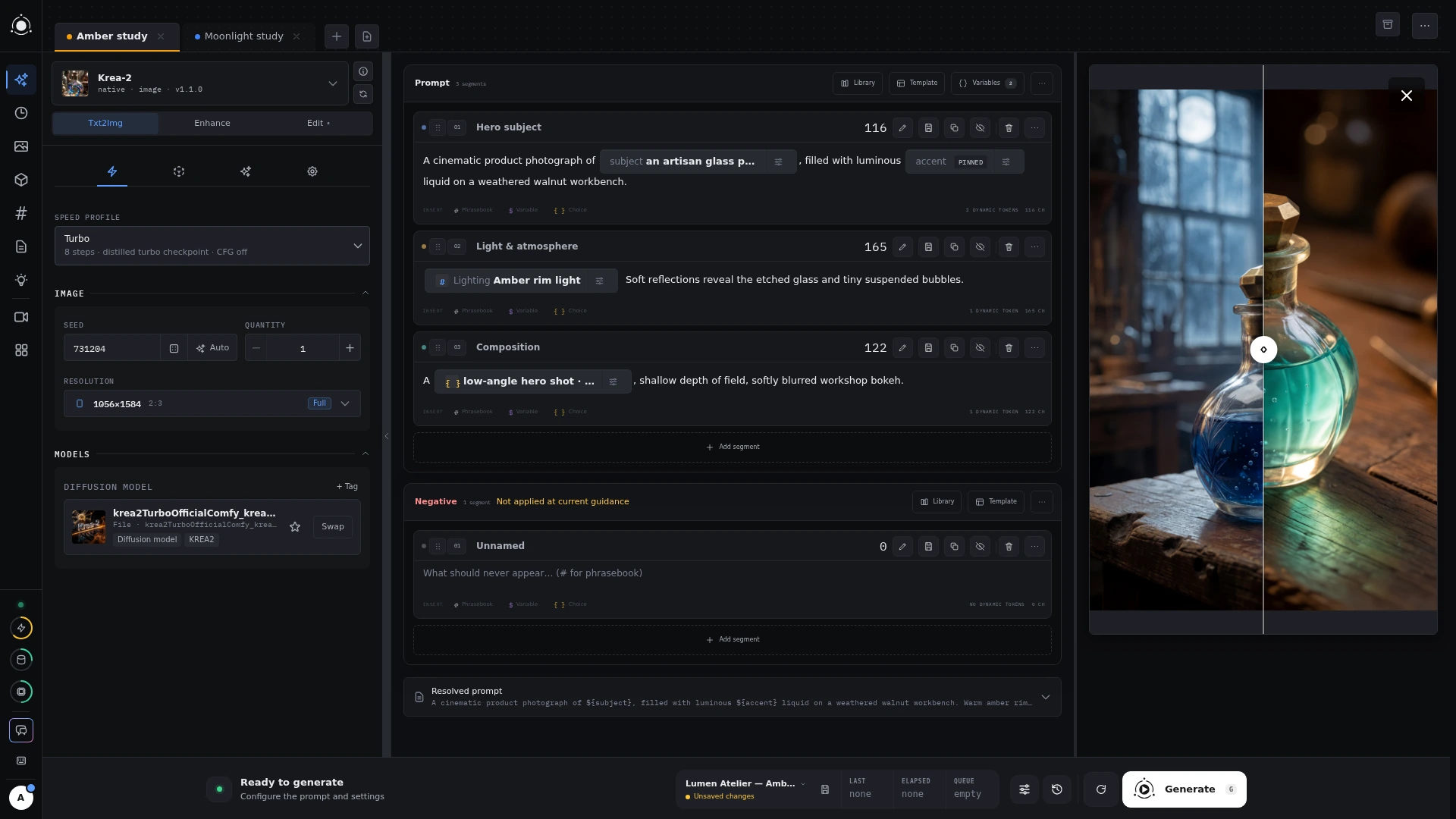 Comparing results in the Workbench