
Elixirs
An elixir chains steps so that the pictures or clips one step makes become the input of the next, and you pick what continues. One run of the whole chain is called a brew.
On this page
What an elixir is#
Think of an elixir as a production line you build once and run as often as you like. Each step is a card. Cards sit in a row and the work flows from left to right: a card takes the files of the card on its left, does its job, and hands its results to the card on its right.
There are three kinds of step:
- Preset step
- Runs one mode of a preset, for example Text to Image or an edit mode, with the settings of a saved session. It makes images or video, from a prompt or from the files the step before it hands over.
- Files
- Holds pictures or clips you already have, picked from History or the Library or uploaded. It is usually the first step.
- Prompt writer
- Asks a language model to write a prompt from your instruction, once for each file it receives, and hands the text to a preset step.
A step can have more than one step after it. Each one starts a branch, so the same pictures can go through several presets in one brew.
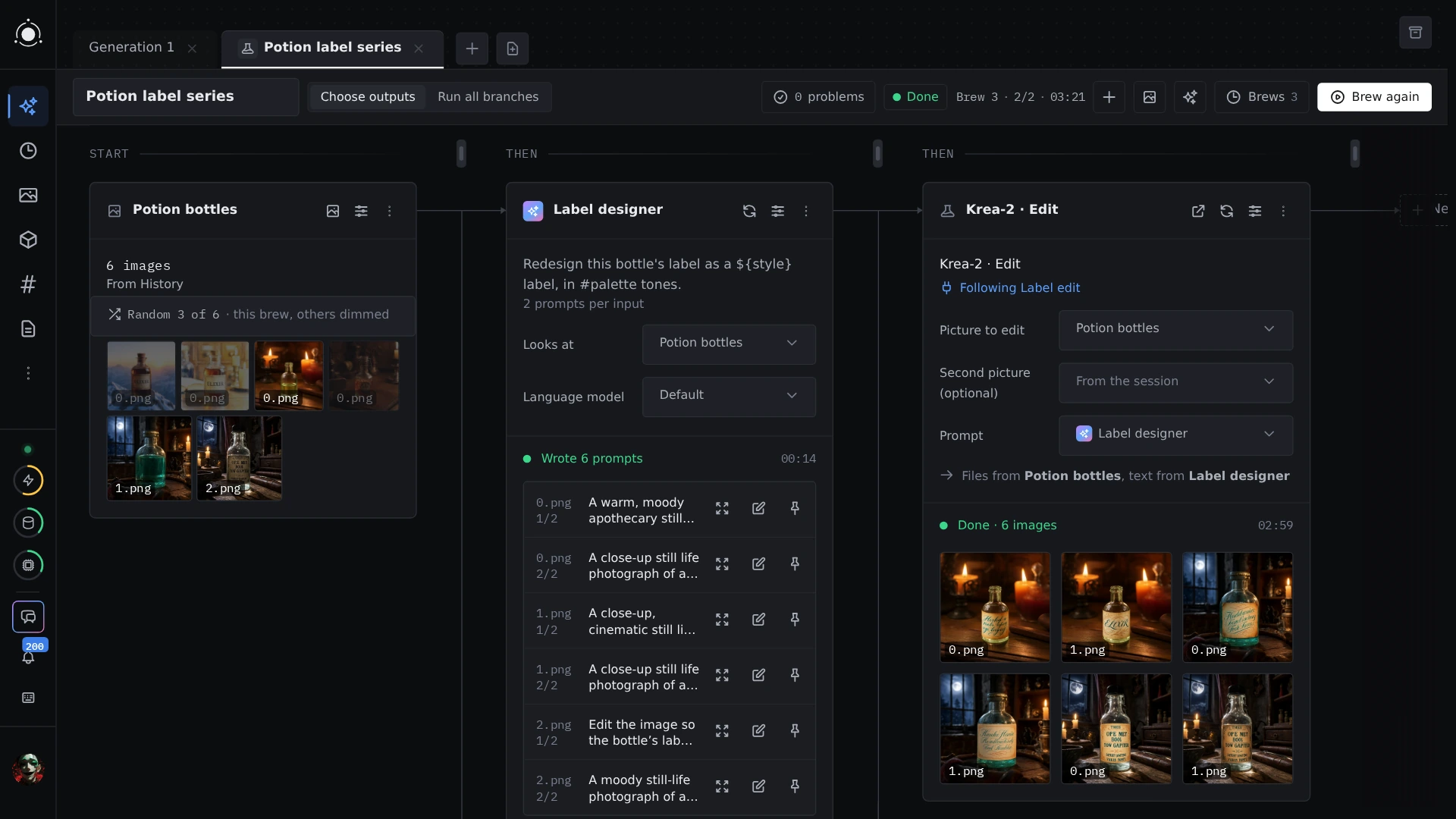 An Elixir after a brew
Open or create an elixir#
Each elixir opens as its own tab on the Generate page, next to your image and video tabs.
-
Open the new-tab menu
Press the plus button in the tab bar and choose Elixir (“Chain presets, pick what continues”).
-
Pick an elixir or start a new one
The menu lists your recent elixirs and has a Find an elixir search. Choose New elixir for an empty one, or All elixirs… to see every elixir you have.
What you will seeAn elixir that is already open switches to its tab instead of opening twice. A new elixir shows “Start your elixir” with two choices: Preset step and Files.
In All elixirs you can open, rename, duplicate and delete elixirs. Duplicate copies the steps and settings without the outputs. Deleting an elixir keeps the pictures and clips it made in History; an elixir that is still brewing has to be stopped first.
Closing the tab of an elixir that is brewing does not stop the brew. A message tells you it keeps brewing, with a Reopen button.
Build an elixir step by step#
Your changes save on their own. The header reads Saving…, then Saved.
-
Choose the first step
Start with a Preset step to make images or video from a prompt, or with Files to begin from pictures or clips in History or the Library.
-
Fill the files step
In the step settings, add files with From History, From Library or Upload. You can also drop files on the card or paste them. Uploaded files are added to your Library as well. One files step holds images or videos, not both; add a second files step for the other kind.
By default every brew sends all the files on. Set Use to Random and choose How many to draw a few at random for each brew instead. The card then shows, for example, Random 3 of 40, and dims the files that were not drawn this brew.
-
Choose a preset and mode
Open the settings of a preset step and pick under Preset and mode. Only modes that fit are offered: a step after a files step must take images or video as input. When nothing fits, the card says “No installed preset fits here”.
NoteA mode is offered in elixirs when PotionUI can tell from the preset what it takes in and what it makes. Modes with an audio input, and modes that make only audio, are not offered.
-
Decide where the step’s settings come from
A preset step runs with the settings of a saved session (a set of form values you saved on the Generate page). Under Session you can:
- Follow a session. Edits to that session reach this step, and the step’s settings are edited in the session itself.
- Copy a session. The step keeps its own copy and the session is left alone.
- Keep the step’s own settings, and later Save as session to reuse them elsewhere.
The step settings show the Prompt, Negative prompt, Seed and the preset’s other fields. Open in preset on the card opens the step in the full Generate view inside the same tab; Save to elixir brings the edits back.
-
Add the next step
Use Next step on a card to add a step after it, Add a branch for a second step after the same card, and Add step before to insert one in between. The header also has buttons to add a preset step, a media source or a prompt writer.
To have a prompt written for each file, choose Preset step with a prompt writer, or Write with AI on an existing step.
-
Set up a prompt writer
Write the Instruction, for example “For the provided image, write a prompt that recreates it.” The instruction uses the same chip editor as Generate’s prompt, so choices,
${name}variables and phrasebook chips work here, and the Variables button manages the writer’s own variables. Prompts per input (1 to 20) sets how many prompts it writes for each file. Writes for names the preset whose prompting style it follows.The writer uses a language model you are allowed to use, one that can see images when files are connected. A written prompt can be edited or pinned on the card; a pinned prompt is used again in later brews for the same file instead of asking the model.
The problems button in the header lists what is still missing, such as a step with no preset. Brew stays off until it reads “Nothing to fix. Every node has what it needs.”
Brew an elixir#
A brew runs every step in order, following the connections. Each brew keeps its own outputs, and every picture or clip it makes is also saved to History.
-
Choose how a brew continues
In the header, pick Choose outputs between presets to stop after each preset step so you can pick which results go on, or Run all branches to let every result go on without stopping.
-
Press Brew
The button reads Brew the first time and Brew again after that.
What you will seeThe header shows the brew’s status (Starting, Brewing, Done) and how many steps are done. Each card shows its progress and then its outputs.
-
Pick what continues
When a step waits, the brew reads Waiting for your choice. Select the outputs you want on the card (Select all and Clear help), then press Continue. Only the picked files go to the next step.
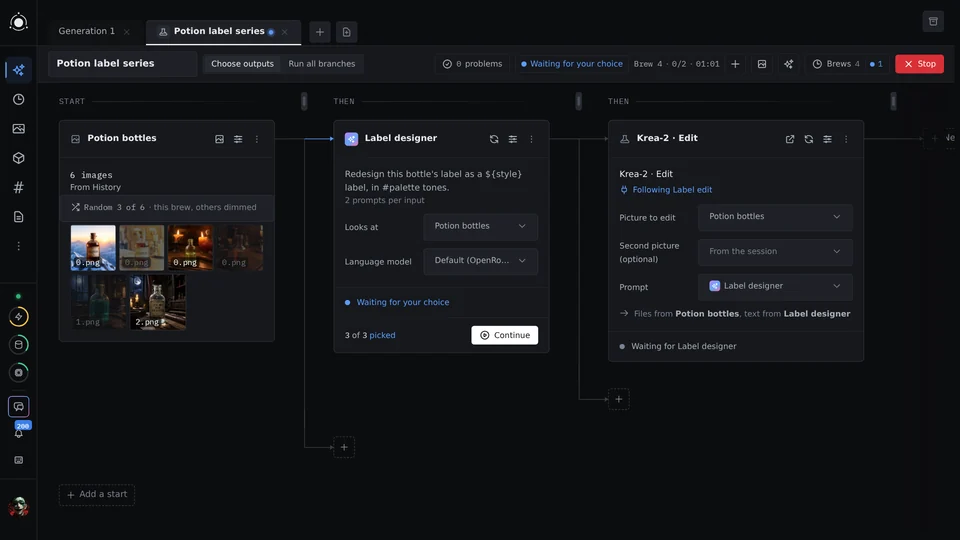 A brew waiting for your choice
An Elixir brew paused at a step: the header reads Waiting for your choice, the Label designer card shows 3 of 3 picked with the Continue button, and the next step reads Waiting for Label designer. -
Run one step again
To redo a single step, press the run-again button in the card’s header (“Run this step again. Steps after it will need a rerun.”). The step runs on its own, and in Choose outputs mode it waits for you to pick its new outputs. A step with failed items offers Retry failed.
Build the elixir in the app, then start brews over HTTP. Every route needs a logged-in user, and an elixir belongs to the account that made it. These routes answer with the data directly, without the {"success", "data"} envelope.
-
Log in
POST /api/auth/logintakes a form-encodedusernameandpassword. Send the returned token as a bearer token on every later request.POST/api/auth/logincurl -X POST http://localhost:26730/api/auth/login \ -d "username=YOUR_USER" -d "password=YOUR_PASSWORD"
-
Find the elixir and its revision
GET /api/elixirslists your elixirs. Each entry carries itsid,name,run_modeandrevision, the version number of its last save.GET/api/elixirscurl http://localhost:26730/api/elixirs \ -H "Authorization: Bearer $TOKEN"
-
Start a brew
POST /api/elixirs/{elixir_id}/runswith therevisionyou read asexpected_revisionand anidempotency_keyof 8 to 120 characters.run_modeis optional:"review"stops for a choice between presets,"automatic"runs all branches. Leave it out to use the elixir’s own setting.POST/api/elixirs/{elixir_id}/runscurl -X POST http://localhost:26730/api/elixirs/$ELIXIR_ID/runs \ -H "Authorization: Bearer $TOKEN" \ -H "Content-Type: application/json" \ -d '{ "expected_revision": 7, "idempotency_key": "brew-0001", "run_mode": "automatic" }'The answer is the brew, with its
idandstatus.Status error Meaning 404 elixir_not_foundThe elixir does not exist or is not yours. 409 revision_conflictThe elixir changed since you read it. Read it again and use the new revision. 422 elixir_not_readyA step has a problem. issueslists them.422 elixir_emptyThe elixir has no steps. -
Follow the brew
Poll
GET /api/elixirs/runs/{run_id}. While it works,statusispending,running,awaiting_selection(waiting for your choice),needs_attentionorcancelling. It ends ascompleted,partial,failed,cancelledorinterrupted. Each entry ininvocationsis one generation or written prompt, with itsgeneration_idandoutputs. -
Stop it
POST /api/elixirs/runs/{run_id}/cancelstops one brew. Outputs it already made are kept.GET /api/elixirs/{elixir_id}/runslists past brews with filters such asstatus,fromandto.
An MCP client can list your elixirs with list_elixirs, read one with describe_elixir, brew it with run_elixir and follow the brew with get_elixir_run. No MCP tool edits an elixir. Inside the app, PotionAI can edit an open elixir for you; see Let PotionAI edit an elixir.
Brew history and stopping#
The Brews button in the header lists the latest brews; each keeps its own outputs. Brew history shows every brew of the elixir, numbered, with its status, start time, duration, steps and outputs. Filter by status (Active, Finished, Failed, Cancelled), by date, by run mode, and by scope (Whole elixir or Single step).
Stop one brew, the brews you selected, or every running brew with Stop all running. Stopping a brew keeps the outputs it already made. While a running brew still needs a generation, that generation cannot be deleted from History.
Brews survive a restart of the server. When it starts again, brews that were running carry on, and a generation or written prompt cut off by the restart is marked interrupted so you can retry it.
Let PotionAI edit an elixir#
With an Elixir tab open, a new chat conversation becomes the Elixirs assistant for that elixir. You can ask it to add, insert, remove or connect steps, change a step’s settings or a prompt writer’s instruction, or pick outputs at a step that waits for a choice. Every change waits for your approval in the chat. The assistant never brews: when a brew is needed, it asks you to press Brew, or Continue after a choice.
It cannot change which files a files step draws; set that in the step’s settings. If the elixir changed since the assistant read it, its edit is refused and it reads the elixir again. See PotionAI assistant for how approvals work.
Limits#
An administrator sets how large an elixir and a brew may grow, in Administration, System Settings, Generation, under Elixirs.
| Setting | Default | What it bounds |
|---|---|---|
| Steps per elixir | 24 | Preset, file and writer steps in one elixir. |
| Connections per elixir | 48 | Links between steps in one elixir. |
| Branches per step | 8 | Steps that can follow one step. |
| Files per file step | 1000 | Files one file step can hold. |
| Files per connection | 1000 | Files one connection passes on per brew. |
| Generations per brew | 200 | Generations one brew can start in total. |
When a writer’s several prompts for the same file go to a preset that can take several prompts at once, the brew sends them as one batch generation, split into more batches above 20 images.
When something goes wrong#
- Brew is greyed out. Its tooltip says why: fix the problems first, wait for the current upload, or wait for the current brew to finish or stop it.
- “No installed preset fits here”. No installed mode takes the kind of file the step before it makes. Install a mode that does, or change the step before it.
- A prompt writer reports a problem. It needs a language model you can use, and one that can see images when files are connected. Ask an administrator to give you access to one.
- “This elixir was changed in another tab or window.” Reload it to continue. Changes made in this tab since the last save are lost.
- Needs rerun. An earlier step has newer outputs. Rerun the step to use them.