
ComfyUI presets and workflow import
A ComfyUI preset runs a ComfyUI workflow on a ComfyUI server you connect, with PotionUI's form in front of it. This guide connects a server, turns an exported workflow into a preset with the import wizard, and shows what to edit by hand afterwards.
On this page
How a ComfyUI preset works#
A ComfyUI preset is an ordinary preset folder with engine: comfyui in its preset.yml. Its form, tabs, lint and render tools are the same as for any preset (see Author a preset). The difference is the pipeline: instead of native pipes it runs one comfyui pipe, which loads the exported workflow graph, writes the form's values into the right node inputs and queues the graph on the server.
Everything ComfyUI needs comes from the ComfyUI Backend plugin, which ships with PotionUI. It provides the comfyui engine and pipe, five ComfyUI presets (FLUX Klein 9B, Krea 2, QwenImage, SDXL Illustrious and zImage), the Detect ComfyUI recipe, the import wizard, an Imported presets page and a Clear VRAM quick action for administrators.
Connect a ComfyUI server#
-
Enable the plugin
In Administration, Plugins, open ComfyUI Backend and switch it on. Its Settings tab holds the default host (
127.0.0.1), port (8188), whether to use HTTPS and WSS, and the connection timeout. -
Add the server as a backend
In Administration, Backends, choose Add backend and pick the ComfyUI engine with the server's address. If ComfyUI already runs on the same machine, the Detect ComfyUI recipe in Administration, Recipes probes the default address, registers the backend, indexes the models the server can load and assigns a ComfyUI preset, with no downloads. Backends, routing and remote servers are covered in Backends, remote workers and routing.
What you will seeThe backend in the Backends list. A ComfyUI preset now runs on it; if a generation fails at once with a connection error, check this address first.
Export the workflow from ComfyUI#
PotionUI needs the version of the workflow the ComfyUI server runs, not the version its editor draws.
-
Turn on Dev mode options if needed
If the Workflow menu in ComfyUI has no Export (API) entry, turn on Dev mode options in ComfyUI's settings. It is off by default.
-
Use Workflow, Export (API)
This downloads a
.jsonfile: a map of node ids toclass_typeandinputs. The plain Export or Save entry writes the editor's graph instead, which the importer refuses with a message asking for Export (API). Workflows built with subgraphs work; their node ids come through as<instance id>:<inner id>.
Import a workflow as a preset#
Importing is for administrators. The import writes a new preset folder; it does not change any preset other people already use.
Open Administration, Plugins, ComfyUI Backend, then its Import workflow tab. The wizard has five steps, shown along its top as Source, Form, History, Requirements and Done.
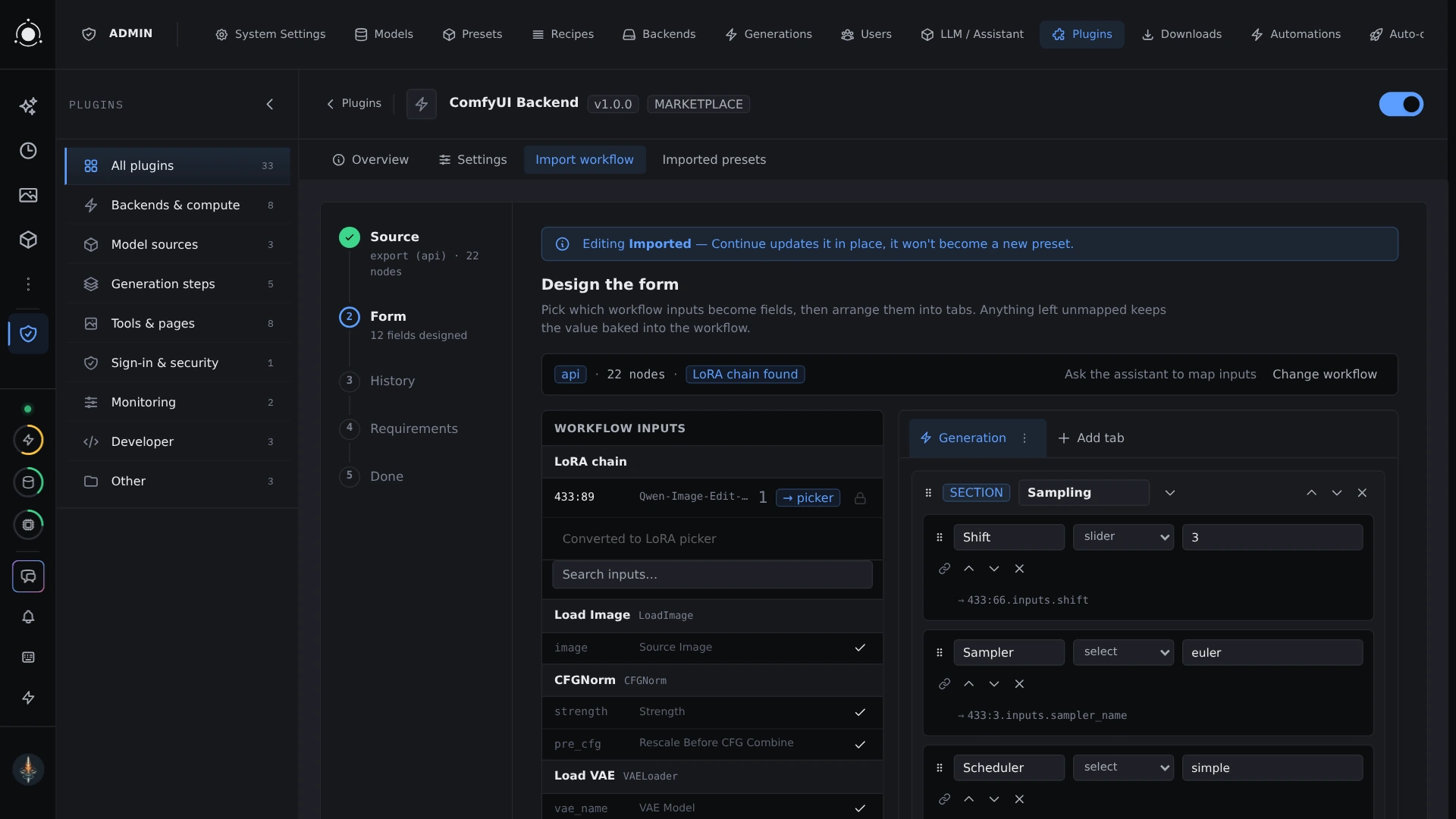 The Form step of a ComfyUI workflow import
-
Choose a workflow
Paste the exported JSON or drop the file, then Continue. The wizard reads the format, the number of nodes and any chain of LoRA loaders.
-
Design the form
A first layout is already built from the inputs that are obvious: the checkpoint, steps, the resolution as one field, a detected LoRA chain as one LoRA picker, model pickers grouped together. Add, remove, rename and move fields into rows, groups and collapsible sections, and add tabs. Anything you leave unmapped keeps the value baked into the workflow. Ask the assistant to map inputs opens a chat that proposes changes for you to approve. Fill in Model family and Display name (Variant is optional) to continue.
NoteWhen the server is reachable, the wizard reads ranges and option lists from your ComfyUI, so a dropdown input becomes a select field with the server's real options.
-
What shows in history
Pick the fields whose values are recorded on every generation and how each one reads on the History card: as is, as a number, as width by height, as a model name, as a list of LoRAs, or through your own template. Prompt, seed and quantity are always recorded. A preview of the History card updates as you choose.
-
Requirements
A checklist of the custom node packs and model files the workflow needs, checked live against your ComfyUI backend. A missing item only warns: you can still create the preset, and it runs once the item is installed. Continue creates the preset.
-
Preset created
The lint results appear under the path of the new folder. Open in Presets takes you to the preset in Administration, Presets.
What you will seeA new preset named after your display name, not yet installed. Choose Install preset, then give users or groups access on its Access tab. It then appears in the Preset menu of the Generate page.
To change an import later, open the plugin's Imported presets tab: editing reopens the wizard filled with what you imported, and Update preset rewrites the same preset in place.
The wizard calls two routes of the ComfyUI Backend plugin. Both need an administrator. The backend listens on port 26730 by default.
-
Log in
POST /api/auth/logintakes a form-encodedusernameandpassword. Send the returned token as a bearer token on every later request.POST/api/auth/logincurl -X POST http://localhost:26730/api/auth/login \ -d "username=YOUR_USER" -d "password=YOUR_PASSWORD"
-
Analyze the workflow
Send the exported JSON as
workflow. The answer lists one candidate per configurable input (node id, input name, current value, suggested field type, name and label, and its role, such asprompt,sampler_paramormodel), plus a readydefault_formanddefault_historybuilt from the obvious ones.POST/api/plugins/comfyui-backend/presets/import/analyzecurl -X POST http://localhost:26730/api/plugins/comfyui-backend/presets/import/analyze \ -H "Authorization: Bearer $TOKEN" \ -H "Content-Type: application/json" \ -d "{\"workflow\": $(cat txt2img.json)}" -
Import it
Send the same
workflowwith aform, ahistory,model_familyanddisplay_name(variantdefaults toimported). You can senddefault_formanddefault_historyback unchanged to accept the importer's first guess.POST/api/plugins/comfyui-backend/presets/importcurl -X POST http://localhost:26730/api/plugins/comfyui-backend/presets/import \ -H "Authorization: Bearer $TOKEN" \ -H "Content-Type: application/json" \ -d '{ "workflow": '"$(cat txt2img.json)"', "form": { "tabs": [ {"id": "generation", "label": "Generation", "items": [ {"kind": "field", "field_name": "checkpoint", "field_type": "model", "label": "Checkpoint", "config": {"model_type": "checkpoint"}, "mappings": [{"node_id": "4", "input_name": "ckpt_name", "transform": "strip_model_prefix"}]}, {"kind": "field", "field_name": "steps", "field_type": "slider", "label": "Steps", "default": 20, "mappings": [{"node_id": "3", "input_name": "steps"}]} ]} ] }, "history": [ {"field": "checkpoint", "label": "Checkpoint", "format": "model_name"}, {"field": "steps", "label": "Steps", "format": "number"} ], "model_family": "MyModel", "variant": "standard", "display_name": "MyModel Standard" }'200response{ "preset_id": "<preset id>", "path": "content/presets/local/MyModel/standard", "mode": "txt2img", "lint": { "errors": [], "warnings": [] } }Check
lintbefore you rely on the import. A shape the importer cannot use is answered with400and a message. To make the preset available, install it withPOST /api/presets/{preset_id}/installand assign it withPOST /api/presets/{preset_id}/assign, or do both in Administration, Presets.
Not available through MCP yet.
What the import turns into form fields#
Each field you keep maps to one or more node inputs. The import follows these rules:
| In the workflow | In the preset |
|---|---|
| Positive and negative prompt, found from the sampler's conditioning | Locked. They come from the prompt area of the Generate page, never from a form field. |
| Seed and batch size | Locked and wired to the seed and Quantity automatically. |
| Width and height | One resolution field mapped to both inputs, split on the x. |
| A checkpoint, UNET, CLIP, VAE or LoRA file name | A model picker. The folder part of the picked path is stripped, so the server receives the bare file name it expects. |
| A chain of LoRA loaders between the model loader and the sampler | One LoRA picker. At run time the preset adds one LoRA node per picked LoRA and points the sampler at the end of the chain. |
| A dropdown input with a fixed list of options | A select field with the server's options, or a model picker when the options are model files. The workflow's own value is kept. |
A LoadImage node | Needs an image field; an import without one is refused. The picture is uploaded to the server at run time. |
| KSampler (Advanced) | An Advanced Sampling section with Add noise, Return with leftover noise, Start at step and End at step. Two such samplers (base and refiner) get two numbered sets. |
| Anything you do not map | Keeps the value saved in the workflow. |
The written preset.yml also gets a requirements: list: one entry per custom node class outside ComfyUI's built-ins and one per model file a loader names, except files a model picker chooses per generation. They are checked live against the backend and shown on the preset's Requirements tab in Administration, Presets.
What the import writes#
The new folder is content/presets/local/<Model family>/<Variant>/. The import never writes into a plugin folder and never overwrites an existing preset. It lints the result and reloads the preset catalog, so no restart is needed.
preset.ymlwithengine: comfyuiand the inferredrequirements:.modes/<mode>/form.ymland its tab files, from the form you designed.modes/<mode>/pipeline.ymlwith the standard ComfyUI chain:dynamic_prompts_renderer,seed_generator,from_iotype,param_emitter,comfyui,output_skipper,gallery.- A copy of the exported workflow at
modes/<mode>/files/workflows/<mode>.json, which thecomfyuipipe loads.
Treat the result as a first draft. Rename fields, move them between tabs and add what the importer cannot infer, then lint and render as for any preset:
python scripts/preset_lint.py content/presets/local/MyModel/standard
python scripts/preset_render.py content/presets/local/MyModel/standard txt2img
Write or edit one by hand#
Scaffold a ComfyUI preset under your local root, then drop the Export (API) JSON under modes/<mode>/files/workflows/ (or files/workflows/ when several modes share it):
python scripts/preset_new.py MyModel/standard --engine comfyui --category image --modes txt2img \
    --root content/presets/local
The work happens in the comfyui pipe:
- name: "comfyui"
  enabled: true
  input:
    - ["seed", "seed_generator", "seed"]
  configuration:
    host: "127.0.0.1"
    port: 8188
    workflow_file: "{{ paths.preset }}/modes/txt2img/files/workflows/txt2img.json"
    timeout: 300
    secure: false
    field_mappings:
      - ["{{ form.checkpoint | strip_model_dir }}", "4.inputs.ckpt_name", "str"]
      - ["{{ (form.resolution | default('832x1216')).split('x')[0] }}", "5.inputs.width", "int"]
      - ["{{ (form.resolution | default('832x1216')).split('x')[1] }}", "5.inputs.height", "int"]
- ["@seed", "3.inputs.seed", "int"]host,portandsecureare placeholders: at run time the pipe talks to the ComfyUI backend chosen for the generation.field_mappingsis a list of[value, "<node id>.inputs.<input>", type]. The value is a template over the form, or"@seed"for the seed the pipe received. The type isstr,int,float,boolorimage;imageuploads the picture to the server and writes the server's file name. A node can also be named by its unique_meta.title.node_manipulationsruns before the mappings and changes the graph itself:add_node,update_node_input,remove_node_input,remove_node,bypass_nodeandreroute_connection, each with an optionalcondition. Remove nodes before you rewire connections to them.
The shipped SDXL Illustrious preset in content/plugins/marketplace/comfyui-backend/presets/SDXL/ is the worked example, including the LoRA chain. Keep your own presets under content/presets/local/, not inside the plugin's folder.
Limits and troubleshooting#
- Only Export (API) files. An editor export is refused at the first step.
- Custom nodes the server lacks. The import still goes through with a warning naming the node, and its fields are a best guess because PotionUI cannot ask the server what the node's inputs are called. Install the node pack and import again when you can. A generation that uses it fails on the server; its log names the missing
class_type. - Some LoRA setups are not detected. A single node that loads several LoRAs, or a pass-through node between a LoRA chain and the sampler, is not turned into a LoRA picker. Edit the YAML by hand.
- Node ids change. ComfyUI does not keep node ids stable across edits. After re-exporting a changed graph, a lint error about a node id that is not in the workflow means a mapping points at a node that moved.
- Model names must match. The preset sends the bare file name of the picked model. If the server has no file of that name in the matching folder, the job fails there. Install the model under the expected name, or filter the picker by a tag you have.
- Missing default. A field the pipeline reads with no
default:and no| default(...)makes render and generation stop. Give it a default. - Engine and pipe must agree. Lint reports
engine: comfyuiwith nocomfyuipipe, and acomfyuipipe in a preset with another engine.
Share a preset#
A preset is a self-contained folder: preset.yml, modes/ and the workflow JSON travel together. Copy content/presets/local/<Model>/<variant>/ to the same place on another instance and restart it; the preset keeps its id. The other instance needs a ComfyUI backend with the same custom nodes and models. There is no export button for this; it is a file copy done by whoever manages the server.