
Backends, remote workers and routing
A backend is a place where generations run: this machine's GPU, a GPU machine elsewhere, a ComfyUI server or a cloud provider. This guide shows how to add each kind, how PotionUI picks one for every run, and what the queue does when several people generate at once.
On this page
Engine and backend#
Two words matter here. An engine is the kind of pipeline a preset runs, the language it speaks. A backend is one configured place that speaks that language, with its own address and settings. Every preset declares one engine, and runs only on backends of that engine.
| Engine | Backends of it | Comes from |
|---|---|---|
native | Native: this machine's GPU, inside the PotionUI process. Exactly one, created on first start, and it cannot be deleted. Native (Remote Worker): a PotionUI worker on another machine, as many as you add. | Built in |
comfyui | ComfyUI: a ComfyUI server, local or remote, as many as you add. | The ComfyUI Backend plugin |
cloud | One backend per provider account, for example OpenRouter or Black Forest Labs. Each provider is a separate driver of the same engine. | A provider plugin; see Models, providers and cloud models |
Two backends of the same engine are a normal setup, for example a ComfyUI server on your desk and a bigger one for heavy jobs. Backends of different engines never compete, because a preset only ever runs on its own engine. There is no fallback to another engine: a ComfyUI preset never runs on the native GPU when the ComfyUI server is down.
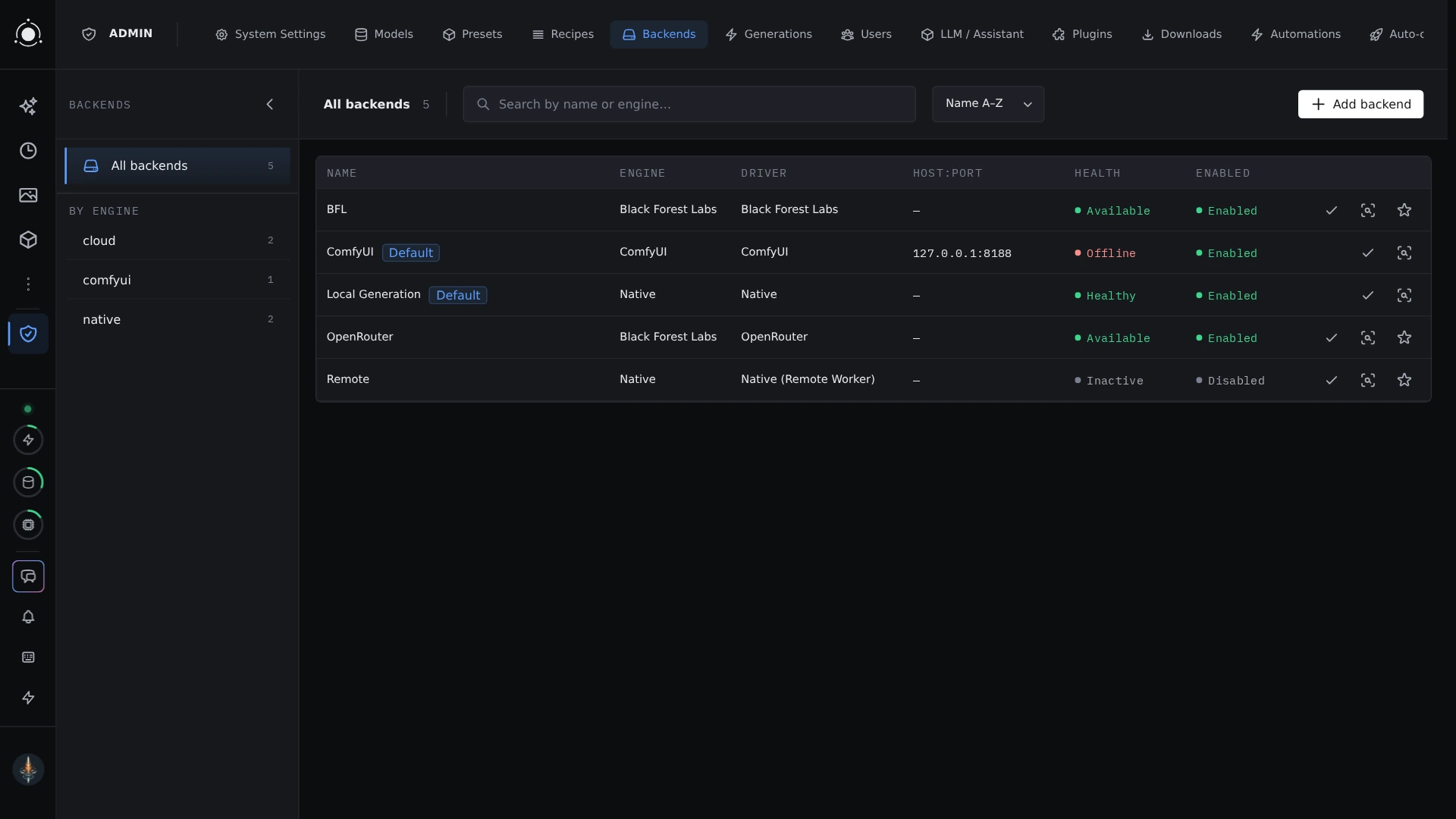 Backends in Administration
The Backends page#
Administration, Backends lists every backend grouped by engine, with its status and which one is the default. A row's actions are Test connection, Index models and Make default. Add backend opens the form; the engine cannot be changed after creation.
- Name, Enabled
- A disabled backend is never used and not even started.
- Priority
- A number; higher wins. Used only to break a tie between backends that are equally loaded and neither is the default.
- Timeout (seconds)
- How long one generation may take on this backend.
- Policy
- The order of jobs waiting for this backend: FIFO or Fair, with Max Consecutive Same-Model Jobs for Fair. See The queue.
- Connection fields
- Whatever the engine needs, such as a host and port. Secret fields are stored encrypted.
A backend's page has tabs that depend on its kind: Overview and Stats for all; Optimizations for native backends; Infrastructure and Models for a remote worker; Catalog for a cloud backend.
Add a ComfyUI server#
-
Turn on the ComfyUI Backend plugin
In Administration, Plugins, turn on ComfyUI Backend and restart PotionUI. Engines are collected when the server starts.
-
Make ComfyUI reachable
By default ComfyUI accepts connections only from its own machine or container. When it runs anywhere else, start it with
--listen 0.0.0.0. -
Add the backend
In Administration, Backends, choose Add backend and the engine ComfyUI. Fill in Host (a hostname, IP address or full URL), Port (
8188by default), Use HTTPS/WSS if it is served over TLS, and API Key if the server requires one.NoteThe host must be reachable from the PotionUI server, not from your browser.
127.0.0.1means the PotionUI machine itself. In Docker Compose, use the ComfyUI service name. -
Test it
Choose Test connection on its row.
What you will seeThe backend appears under ComfyUI with its status. The ComfyUI presets that ship inside the plugin, and any workflow you import as a preset, can now run on it once they are installed and assigned in Administration, Presets.
Backend routes need an administrator's token. Engine settings are flat fields in the body, not nested.
-
Log in
POST/api/auth/logincurl -X POST http://localhost:26730/api/auth/login \ -d "username=YOUR_ADMIN" -d "password=YOUR_PASSWORD"
-
See which engines exist
GET /api/backends/enginesdescribes every registered engine and driver with its fields. Ifcomfyuiis missing, the plugin is off. -
Create the backend
POST/api/backendscurl -X POST http://localhost:26730/api/backends \ -H "Authorization: Bearer $TOKEN" \ -H "Content-Type: application/json" \ -d '{ "name": "ComfyUI studio", "engine": "comfyui", "host": "10.0.0.20", "port": 8188, "secure": false }' -
Test it and make it the default
POST /api/backends/{id}/testchecks the connection.POST /api/backends/{id}/set-defaultmakes it the default for its engine; a plainPUT /api/backends/{id}cannot change that flag, and the engine itself can never be changed.
Not available through MCP yet. No built-in MCP tool manages backends. Use the app or the API tab.
Add a remote native worker#
A remote worker runs native presets on another machine's GPU. Use it when the server people open in their browser has no GPU, or to add a second GPU machine. The worker has no database and no accounts; the instance that sends it work keeps all history and files.
-
Start the worker
On the GPU machine, set
POTIONUI_WORKER_TOKENand run./potionui worker start --host 0.0.0.0. It listens on port7690by default. The worker profile has the details. -
Add the backend
On the instance, choose Add backend and the engine Native (Remote Worker). Enter the Worker URL, for example
http://10.0.0.5:7690, and the same Worker Token. Connect and request timeouts can stay as they are. -
Put the models on the worker
A worker uses only model files in its own folder,
POTIONUI_WORKER_MODEL_DIR(/modelsby default), one folder per model type. The backend's Models tab lists the instance's models, shows each one's exact path on the worker, and pushes the ones you select. You can also copy files there yourself.What you will seeA run whose models are not on the worker fails at once and names the missing files, pointing to the Models tab. PotionUI never copies models to a worker as a side effect of a generation.
- Engine switches. The worker's Optimizations tab lives on the instance. Each job carries those values, so the worker's own environment never decides them.
- Rented GPUs. With the RunPod Provider plugin turned on and its RunPod API Key set in Administration, Plugins, the worker backend's Infrastructure tab can start a RunPod GPU pod running the worker image, show its bring-up log, and start or stop it later. A pod paused or deleted in RunPod's own console is noticed and its backend disabled; turn it back on with Enable backend.
- Limits. A worker runs one job at a time. A model stored as a folder (Hugging Face layout) cannot be sent to a worker. A model that was never indexed has no recorded checksum and must be indexed first.
The worker token is the only protection a worker has. Anyone who can reach the worker and knows the token can run work on it and download its results. Keep the worker on a network you trust.
The default backend per engine#
Each engine can have one default backend: one for native, one for comfyui, one for cloud, not one overall. Set it with Make default. With several enabled backends of one engine, a job goes to the least loaded one; the default backend wins a tie, then the higher priority.
How a job gets its backend#
Nobody picks a backend when they generate: a request never names one. PotionUI chooses at the moment the job is submitted, by narrowing the candidates step by step:
- Every enabled backend of the preset's engine.
- For a preset tied to one provider, only that provider's backends.
- Only backends that hold every model selected in the form. A backend whose models were never indexed counts as unknown and stays in.
- Only backends that meet the preset's requirements, such as a ComfyUI custom node. A requirement not checked yet counts as unknown, stays in, and is checked in the background for the next run.
- Of what is left, the least loaded backend. Load is the jobs queued and running on it, divided by how many runs it can do at once. A tie goes to the default backend, then to the higher priority.
If nothing is left, the run fails with every reason listed, for example a backend missing a node. Administrators see the full decision, every candidate and why it was kept or dropped, in the Routing panel of the run in Administration, Generations. Plugins can add their own steps.
The queue#
Once a job has its backend it waits for that backend only:
- Native, remote worker and ComfyUI backends run one job at a time. The others wait.
- A cloud backend runs several at once: its Parallel jobs setting, 4 by default, from 1 to 32.
- Backends work in parallel with each other. A job waiting for the GPU does not hold up a ComfyUI job queued behind it.
Each backend's Policy decides which waiting job goes next:
- FIFO
- The default. Jobs run in the order they arrived.
- Fair
- Takes turns between users, so one person's long batch does not hold everyone else back. To save model reloads, a job for the model that ran last may go ahead of its turn, but only up to Max Consecutive Same-Model Jobs (3 by default) in a row while someone is waiting for a different model. It trades some waiting time for fewer reloads; PotionUI does not measure whether that pays off for your models.
What users see#
- The queue button beside the run bar opens Generation queue, which lists the tab's jobs with each one's place in the queue or its status. Cancel all there, or Cancel queued jobs in the run bar's menu, removes the waiting ones.
- A run's details show how long it waited in the queue.
- A job’s place in the queue is the place on the backend that will run it, not in one list for everyone. When no backend of the engine can take the job right now, it is accepted and waits, with the reason shown, until a backend comes back; a backend that is turned off passes its waiting jobs to another eligible one. Backends that do not run on this machine’s GPU are health-checked in the background.
- Users never see which backend ran their job, nor its host or port.
- When a remote worker needs a restart, administrators are told to restart it and other users to ask an administrator.
Optimizations on native backends#
The local native backend and every remote worker have an Optimizations tab with the engine's switches in three groups: Speed (fp8 and nvfp4 fast multiply, Fused block steps, Fuse LoRAs into the model, Compile the model, Qwen3 text encoder in bf16, Sol-Attn implementation), Memory (Prefetch streamed layers, Shrink bf16 models to fp8 at load, VRAM reserve for sampling, LTX decode tile size and length) and Debug logging, plus the Attention backend pin. Each row says when a change applies, most of them from the next generation. The local backend's settings also hold its Device, Precision, GPU Max VRAM (GB) and Text Encoder Placement; their defaults are worked out from the GPU the server finds.
When something goes wrong#
- “No enabled backend provides engine 'comfyui'”
- No enabled backend of that engine exists, or, most often, the plugin that adds the engine is off. Turn the plugin on, restart, and create a backend. The message lists the engines that are available.
- A ComfyUI run fails at once with a connection error
- Use Test connection. Check that ComfyUI listens on that host and port, that Use HTTPS/WSS matches how it is served, and that an API key is set if it needs one.
- A preset runs on the wrong backend
- Jobs go to the least loaded eligible backend, so a busy default is passed over. Check the Routing panel of the run, and which backend is the default.
- A backend disappeared after a plugin change
- A backend whose engine is no longer registered is skipped at start with a warning. Turn the plugin back on or delete the backend.
- Runs fail with
gpu_restart_required - Under WSL2 and Docker Desktop on Windows, a driver-level out-of-memory error leaves the process unable to use the GPU, and new GPU runs are refused until a restart. Restart the app: in Administration, Backends, open the backend, then its Optimizations tab and press Restart app (it asks “Restart the app now?” and warns that active generations will be interrupted), or restart the container. For a remote worker, restart the worker process; restarting the app on the instance does not restart the worker.