
Create
Presets & forms
The right controls for the model you’re using.
What a preset gives you
A preset connects a generation pipeline to a purpose-built form. It defines supported modes, required models, controls, and defaults. Choose an installed preset to start creating; authoring your own is optional.
The built-in preset catalog lists the shipped image, video, music, 3D, and utility tools with their available modes.
| Mode | Use it to… |
|---|---|
| Text to image | Create an image from a written description. |
| Image to image | Transform an input image using a prompt and the available strength controls. |
| Inpaint | Edit a masked region of an image. |
| Enhance / upscale | Increase resolution or refine an existing result. |
| Video, audio, or 3D | Work with a preset designed for that medium. |
Each preset offers its own subset of modes. A field may appear only after you enable a related option.
Understand common controls
- Resolution: image dimensions or a named aspect ratio supported by the preset.
- Steps: how many sampling steps a run uses. Follow the preset’s defaults before tuning.
- Guidance / CFG: how strongly the model follows the prompt, where supported.
- Seed: a starting value for randomness.
-1requests a fresh seed; History records the actual value used. - LoRAs: compatible add-on models for a style, character, or subject, with individual strength controls.
Shape a preset’s form
Administrators can change defaults, lock settings, or hide fields in an installed preset. For a custom tool, authors define fields in form.yml and connect their values to processing steps in pipeline.yml.
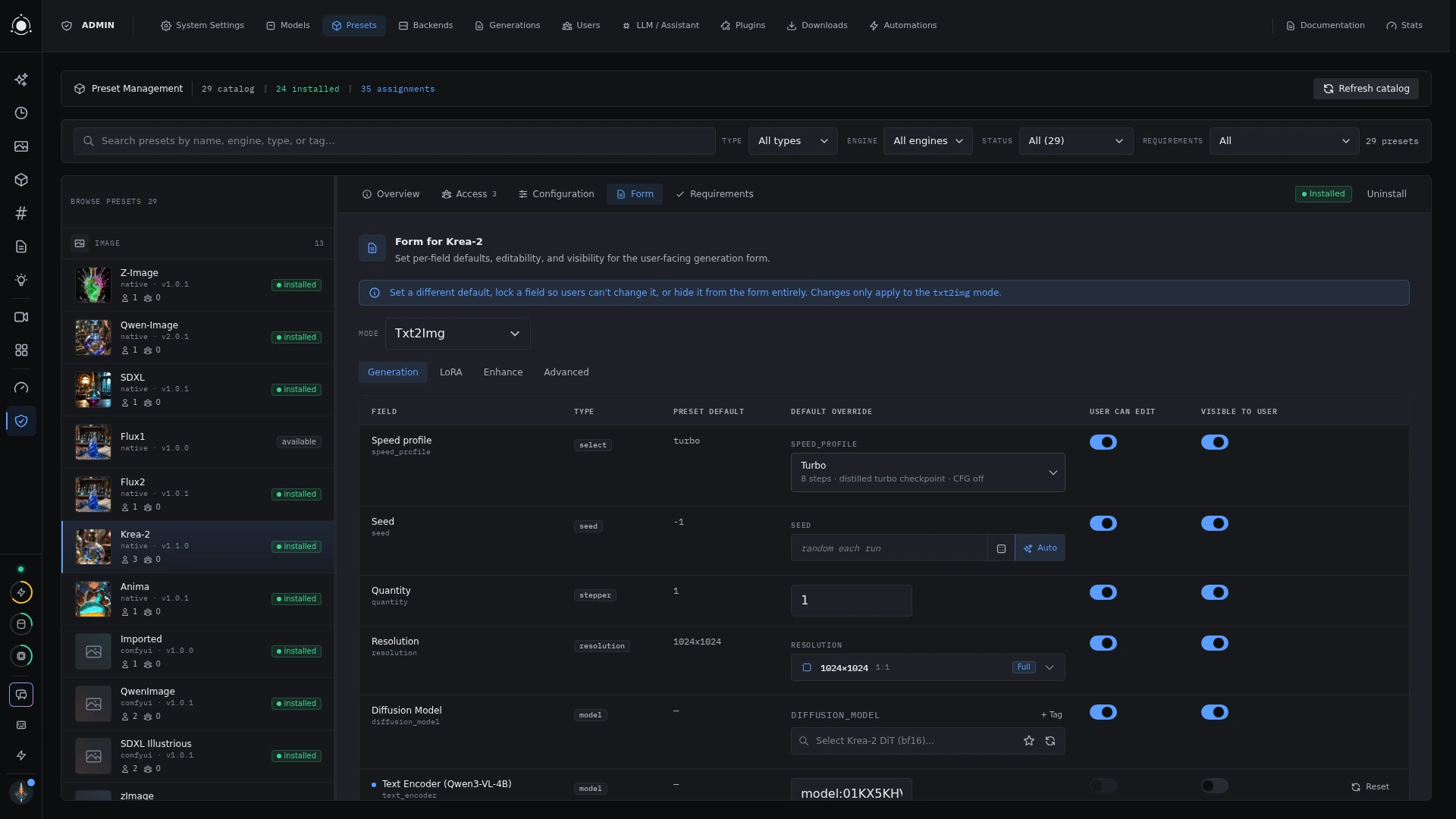 Customizing a preset form