
Your models and folders
Models are the weight files presets run: checkpoints, LoRAs, text encoders, VAEs, upscalers and more. This guide covers where PotionUI keeps them, how to use the folders of an install you already have, what indexing reads, and how to find, download and organize models.
On this page
How models fit in#
You do not generate from a model directly. You generate from a preset, which is a model with a form built for it, and the preset’s model pickers list the installed models of the right type that you are allowed to use. After a run, its details in History list exactly which models were applied.
- Folders are where the files live on the server. An administrator manages them.
- Indexing reads the files so PotionUI knows what each one is.
- The Models page is everyone’s inventory of the models available to them.
- Downloads add new files, from a preset’s recipe, the Model Browser or Admin, Downloads.
Adding folders, indexing and downloading from Admin are administrator tasks. If you are not an administrator, the Models page and the model pickers are the parts you use; ask your administrator for a model you are missing.
Where models are kept#
Models live in one or more folders on the server: the built-in models/ folder plus any folder you add. PotionUI reads models where they are. Nothing is copied or linked, and Windows paths work. One folder can hold any number of model types, each in its own type folder such as loras or vae. Folder names are recognized in any letter case.
You set folders up in the setup wizard on first run, or later under Admin → Models → Folders.
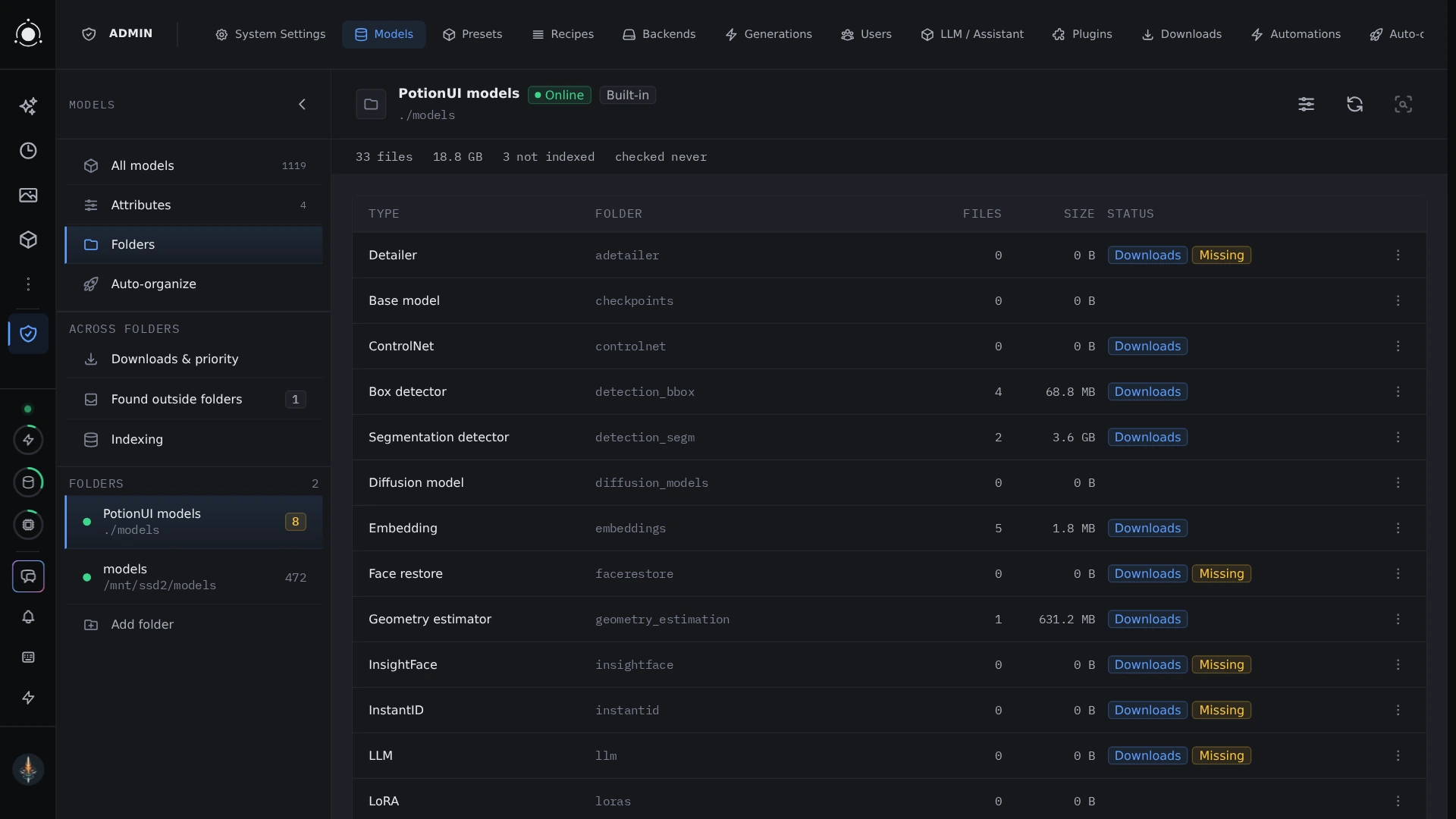 Model folders in Administration
Add an existing folder#
If you already have models for ComfyUI, Forge, AUTOMATIC1111 or another tool, point PotionUI at that install instead of downloading the files again.
-
Open Add folder
In Admin → Models → Folders, select Add folder. The dialog is called Add a model folder.
-
Type the path and select Detect
Enter the Folder path as the server sees it: the install folder of the other tool, a folder on another drive, or a mounted network share. Detect reads it.
What you will seeThe Layout PotionUI recognized and the evidence it found, then Detected folders: one row per model type with its folder and file count, the ones found already ticked.
-
Check the layout and the types
Pick another layout if the guess is wrong. Tick or untick types. Turn on Download new models here for a type if new downloads of that type should land in this folder.
-
Select Add folder
What you will seeThe folder appears in the Folders list. Its models are listed and usable at once; indexing them runs in the background, see Indexing.
The layouts PotionUI recognizes are ComfyUI, AUTOMATIC1111 / Forge / SD.Next, Fooocus, Pinokio, StabilityMatrix and SwarmUI. When none matches, the folder names are used as they are (Generic). Some tools keep part of their models outside their install folder, for example through their own extra paths setting; PotionUI lists those places and can add them too. If you chose a folder inside a larger install, it offers Use the install folder instead. A folder with no model files yet can still be added empty.
The path must be reachable from the server, not only from your computer. When PotionUI cannot read it, the dialog says so.
Manage folders
- State. Each folder shows whether it is online and when it was last checked. Check now rechecks it, for example right after you plug in a drive. A folder missing on disk is flagged in the list.
- Folder settings. Rename it, change its Path on the server when a drive letter or mount point changed, or mark it Read-only: models there are used, but nothing is downloaded into it. The built-in folder cannot be moved.
- Type folders. A table of the folder’s model types with files, size and status. A type’s actions are Use for downloads, Detect type from file (read each file header to tell full checkpoints from diffusion models; pickle files keep the folder’s type) and Remove from folder.
- Detect again. Looks for type folders that were added to the install since, and lets you add the new ones.
- Delete folder. Its models become unavailable, not deleted. The files stay on disk and you can add the folder again later.
Downloads and priority
Downloads & priority sets, for each model type, where new downloads are saved and which folder wins when the same model exists in more than one. New downloads go to the folder marked Downloads. When a model exists twice, the folder listed first is used; move folders with Use earlier and Use later. Existing files never move. If a type has no folder PotionUI can write to, the download dialog tells you.
Found outside your folders lists places where PotionUI found model files that are not part of a folder yet. Add as folder turns one into a folder without downloading or reading anything again.
If a folder is offline when a generation needs it, the generation fails and names the folder instead of quietly using another file. Folders that earlier versions linked with symbolic links are converted on first start, and downloads keep going to the same drive.
Indexing#
Indexing reads each model file once, so PotionUI can find duplicates, look your models up on CivitAI and remember what each file is. Without it everything still works, and a file is read the moment something needs it. Listing a folder only reads file names and headers, so models are usable before indexing finishes.
When there are files waiting to be indexed, PotionUI asks an administrator how to go about it, with the number of files, their total size and an estimated time:
- Index all in the background. Everything, a little at a time.
- Pick models. Start with the ones you use. The rest wait.
- Later. Nothing is read now. Start whenever you like from Admin, Models, Folders.
The Indexing section of Admin, Models, Folders shows progress, speed, time left and the file being read, with Pause and Resume. Resource use sets how hard it works: Low, Normal or Max, applied right away. At Low and Normal indexing pauses while a generation runs and carries on by itself when it finishes; Max does not pause. Progress is kept when you pause, even across a restart. Files that could not be read are listed with their paths.
When indexing ends, the summary lists what it set aside: copies of the same file, with the file that was kept; models found in more than one folder; and name conflicts. Existing hashes are reused, so files are not read again, and a moved file keeps its hash. A download counts as complete only after its model is indexed.
The Models page#
Open Models in the sidebar, or press 4. It shows the models available to you as cards: the ones assigned to you, directly or through a group. Administrators assign models in Admin; the full list of installed files is in Admin, Models.
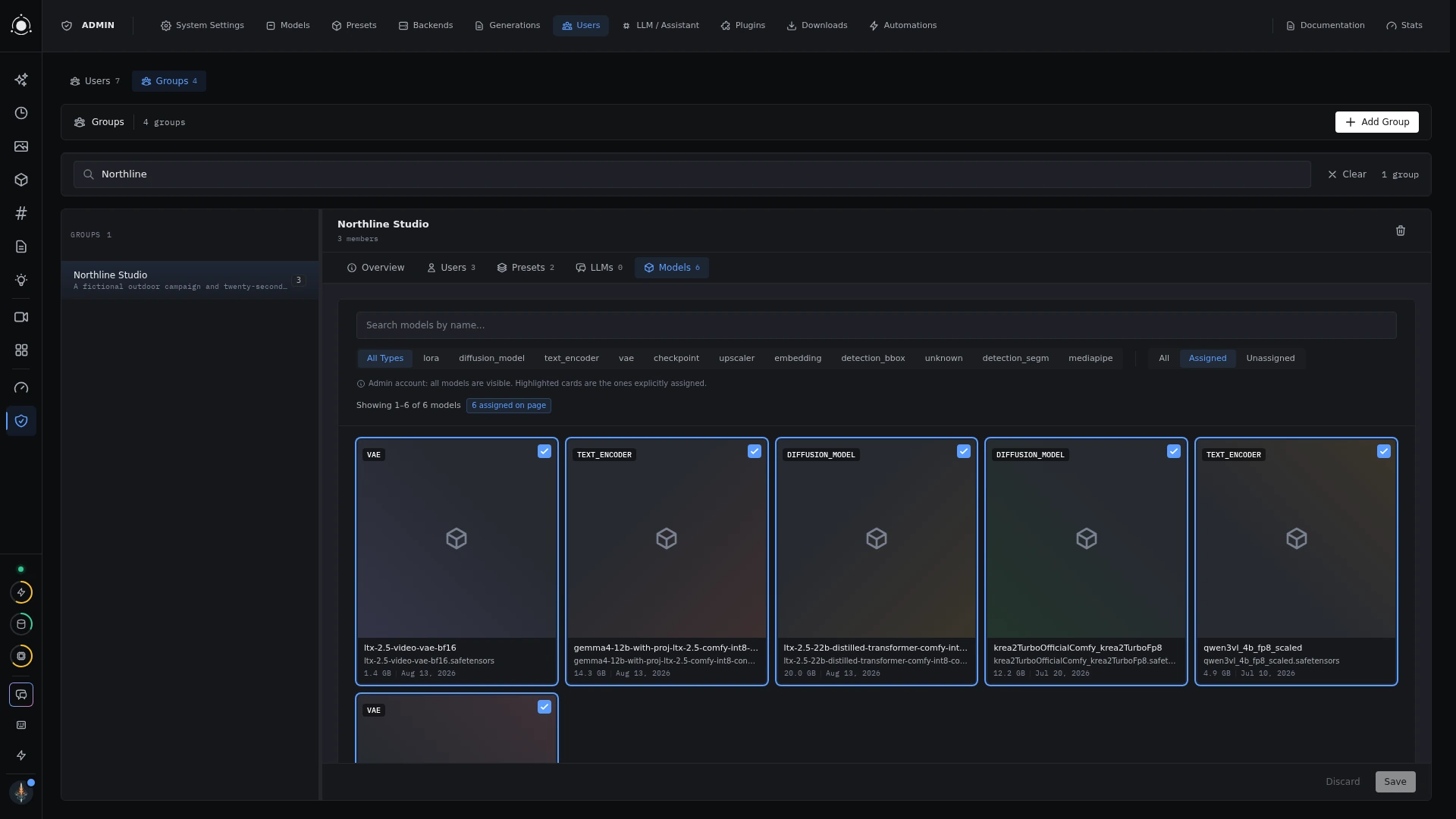 Model management
- Search. Type part of a name;
*and?work as wildcards. The Regular expression button switches to a regular expression. - Type. One button per model type on the server, with its count, and All.
- Sort. By Name or Type, descending or ascending.
- Tags. The tags bar filters by model tag.
- Left panel. All models, Favorites, Unsorted and your model collections.
Select a card to open the model’s page: its description, previews, attributes such as trigger words, information (model ID, type, when it was added), its files and the generations made with it. Administrators open the same model in Admin, Models, where they also see the file name, SHA-256, size, location, which backends can load it, and edit the description, attributes, previews and the prompting guidance the assistant reads.
When the CivitAI provider plugin is enabled and has looked a model up, the model can carry a description, previews and trigger words from CivitAI.
Organize your models#
- Custom name. On a model’s page, select its name to set your own. Only you see it.
- Favorites. Favorite a model from its page, or select several cards and use Favorite in the selection bar.
- Collections. Your model collections work like the ones in History: create them in the left panel, and use Add to collection on a model’s page. A model picker in a preset form can browse your collections as well as the full list.
- Yours. Some attributes have a value of your own, marked Yours, which you can set next to the shared value.
- Auto-organize. A rule can add new models to a collection for you. Start one with Auto-file items like this… on a model’s page. See Auto-organize.
Administrators also have instance-wide model rules, in Admin, Models, Auto-organize: Give a user group access, Add model tags (model tags are shared by everyone), Set model type for files that landed in the wrong folder, and, with the CivitAI provider plugin, Fetch CivitAI data. Each rule shows a preview and can be undone from its activity.
What “installed” means for a preset#
A mode of a preset is ready when every model file it needs is installed. A mode that is missing a file blocks only itself:
- Administrators see Install in the mode menu, with the download size. It opens the Install modes sheet of the preset’s recipe, which downloads the files the mode needs. See Recipes and install modes.
- Everyone else sees “Not set up yet - ask an admin”.
- A model picker with nothing to offer says “No model installed yet. An admin can set it up.” To an administrator it offers Install modes or Set up with recipe.
A model you have downloaded unblocks Generate without a page refresh. A model that is installed but not assigned to you does not appear in your pickers.
Download models#
- From a preset
- The usual way. Install modes, or the setup wizard, downloads what a preset’s modes need, with sizes and time estimates before you start. Downloads run in parallel, survive a restart and can be cancelled.
- From a model picker
- An administrator sees Suggested files under a picker, with Download beside each. A gated model needs its licence accepted on Hugging Face and a token set in Admin, Plugins; the picker links to its Hugging Face page.
- Model Browser
- When the Model Browser plugin is enabled, a Model Browser entry in the sidebar searches CivitAI, Hugging Face and OpenModelDB and downloads the file you pick into the right model folder. An administrator decides per user group who may browse, request or download. A downloaded model arrives with its description, previews, tags, base model and licence filled in.
- Admin, Downloads
- Administrators can add a download directly and follow every download in progress.
You can also copy model files into a folder yourself. To have PotionUI pick them up, an administrator uses Index models on the backend in Admin, Backends; see Backends, remote workers and routing.
Quantize, bake and merge#
Model Tools is an administrator-only preset for the local native backend. It turns files you already have into new ones: it quantizes a model to FP8, INT8, INT8 ConvRot, NVFP4 or INT4 ConvRot, bakes LoRAs or LoKr adapters into a model, and merges LoRAs into one. SDXL is not supported. The result is written next to its source, in the same folder and type, and appears as a model card in the Workbench and History. Layers a format cannot hold stay in source precision and are reported. The run is refused when the destination drive lacks room for the output plus a safety reserve, and an existing file is only replaced when you tick Overwrite.
A merged file is a derivative of its inputs. Check their licences before you share it.
Model licences#
PotionUI is distributed without any model weights. Models are downloaded or installed only at your explicit request, from third-party sources you choose. Every model ships under its own licence (permissive, OpenRAIL-style use-restricted, non-commercial and region-restricted terms all exist), and those terms are an agreement between you and the model’s licensor. PotionUI’s GPL-3.0 licence covers the software only; it neither grants you rights to any model nor adds restrictions on any model.
You are solely responsible for the models you obtain and for what you do with them: verifying that you may download and run a given model under its licence and the laws that apply to you, and for the content you generate with it.