
Make it yours
Plugins & ComfyUI
Add the capabilities your studio needs.
Extend your installation
Plugins can add pages, provider integrations, generation backends, sidebar widgets, quick actions, and automation templates. Examples include model downloading, external catalog providers, system monitoring, and GPU memory cleanup.
Open Administration → Plugins to inspect installed plugins, configure their settings, and enable or disable them. Their pages and controls appear only when enabled.
The plugins below ship with PotionUI. Enable the ones you need; external services and model files are configured separately. Plugins can support either the native engine or another backend, such as ComfyUI.
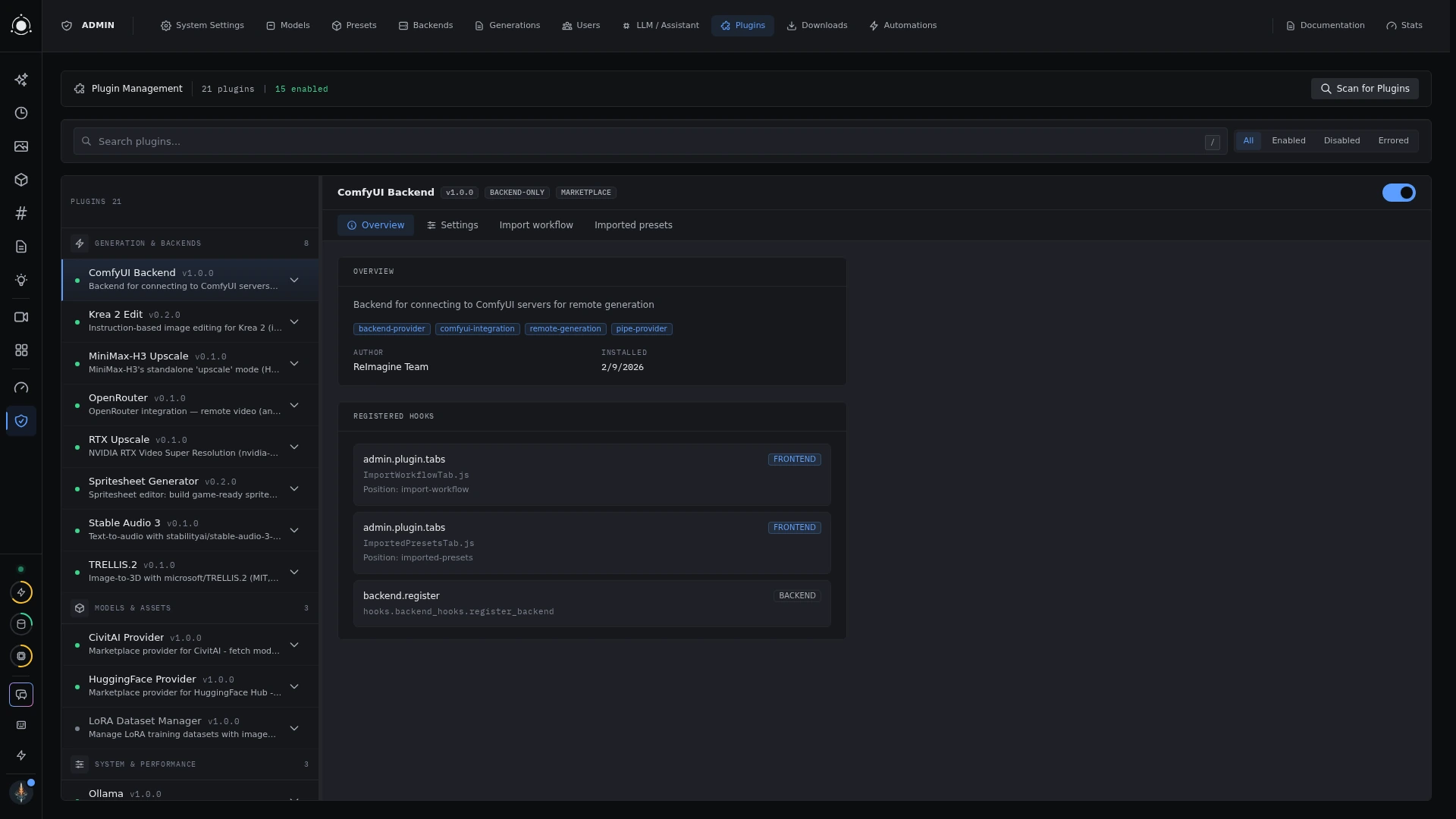 Plugin management
CivitAI Provider
Fetch model metadata, preview images, and download links from CivitAI. The plugin also exports generated images as PNGs with CivitAI-compatible generation metadata. An optional CivitAI API Key supports authenticated requests; settings control request spacing and how many preview files to download.
HuggingFace Provider
Search public models and resolve repository files into model downloads. The native starter recipes use this provider to fetch their required files. Public repositories can be accessed anonymously; gated or private files need a HuggingFace Access Token with access to the repository. Accept any required model terms on Hugging Face before downloading.
ComfyUI Backend
Connect a ComfyUI server for remote generation, check its model and custom-node requirements, and import API workflows into PotionUI forms. Configure generation servers in Administration → Backends; the plugin’s default host and port are also used by its Detect ComfyUI recipe.
The plugin includes five ComfyUI presets, an import wizard, an imported-presets page, and a Clear VRAM quick action. Follow the workflow import steps below to add your own.
NVIDIA RTX Upscale
Add image and video upscaling, denoising, and deblurring through NVIDIA RTX Video Super Resolution. Its RTX Upscale preset processes existing media without a text prompt or diffusion checkpoint. Denoise and deblur preserve resolution; the upscale options increase it.
Requires an NVIDIA RTX GPU from Turing onward, Linux with NVIDIA driver 570.190 or newer, and the nvidia-vfx Python package. Install that package in the environment running generation; the preset’s Requirements tab reports it when missing.
RunPod Provider
Provision a RunPod GPU Pod running PotionUI’s Remote Native worker. Add a RunPod API Key in the plugin settings, then use Administration → Remote Compute to configure and provision compute. PotionUI creates the connected native backend when provisioning succeeds.
This integration uses GPU Pods with persistent model storage. Model files must be placed on the worker separately. Stopping or terminating a Pod through PotionUI retains its network volume; manage that storage in RunPod.
Ollama
Free GPU memory held by an Ollama daemon. Configure Ollama Host URL and use the admin-only Clear Ollama VRAM quick action to unload its loaded models. The plugin also adds an Unload Ollama Model(s) automation action for unloading one named model or all loaded models. Ollama reloads models when next used.
System Monitor
Show live GPU, RAM, and CPU resource usage in the sidebar. Enable Show in Sidebar in the plugin settings to keep resource usage visible while working.
Image Modal Viewer
Add a full-screen image action to the generation workbench. Open the current image for closer inspection, then close the viewer with Escape or its close control.
Developer examples
Two bundled plugins demonstrate extension points: Example Field Type supplies a one-to-five-star form field, and Example Frontend Extensions supplies a sample History artifact renderer and an admin tab. These are references for plugin authors.
Bring a ComfyUI workflow
- Connect ComfyUI
Enable the ComfyUI Backend plugin and configure a reachable server in Administration → Backends.
- Export the runnable workflow
In ComfyUI, use Export (API). Enable Dev mode options if that export is missing. The regular editor export is a different format.
- Build the preset
Open Administration → Plugins → ComfyUI Backend → Import workflow. Paste or upload the JSON, design the form, select fields to record in History, and review requirements.
- Check dependencies and generate
The importer can create a preset with missing-node warnings, but the workflow needs its required custom nodes and models installed before it can run.
Build your own tools
For a tailored generation tool, start with preset authoring. For capabilities around or beneath generation, use the plugin API. The app’s Developer reference includes form field types, template functions, icons, and live previews.